

- 조회수
- 34 조회수
- 업데이트됨
- 업데이트됨 03.09.2026
- 1.16 — 1.21.8
 Fabric
- 클라이언트
Image Shader
Only use a shader to display an image on your screen~ Note: compiling the shader may take some time!
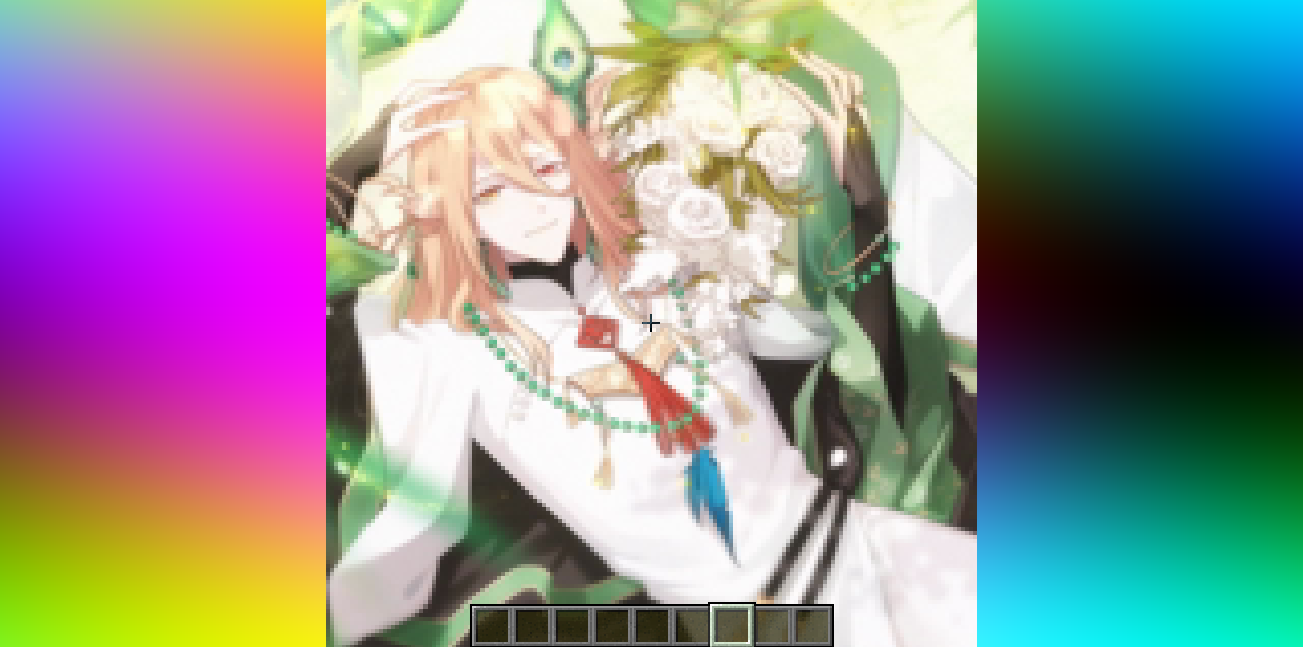
How to prepare a custom image~
First, use ffmpeg (or any tool) to resize your image to 160×160 pixels.
Using ffmpeg: ffmpeg -i Input.png -vf scale=160:160 image.png
Then place the resized image in the same directory as the Python script below. Run the script to produce an image_chunks folder, then copy the 16 .glsl files inside into shaders/data/image_chunks (you need to unpack the shader pack first). Enter the game, enable the custom image option in the shader settings, and wait for the shader to finish compiling — Then it's ok~
A Python Script
from PIL import Image import os
def generate_glsl_chunks(image_path, output_dir="image_chunks"): try: img = Image.open(image_path).convert('RGBA') except FileNotFoundError: print(f"Error: Image file not found at {image_path}") return
width, height = img.size if width != 160 or height != 160: print(f"Error: Image must be 160x160 pixels, but it is {width}x{height}.") print(f"You can use:") print(f"ffmpeg -i image.png -vf scale=160:160 output.png") print(f"to adjust the image resolution.") return
os.makedirs(output_dir, exist_ok=True) chunk_size = 40 num_chunks_x = width // chunk_size num_chunks_y = height // chunk_size
for chunk_y in range(num_chunks_y): for chunk_x in range(num_chunks_x): left = chunk_x * chunk_size upper = chunk_y * chunk_size right = left + chunk_size lower = upper + chunk_size sub_img = img.crop((left, upper, right, lower)) pixel_data = list(sub_img.getdata())
array_name = f"image_data_{chunk_y}_{chunk_x}" output_file_path = os.path.join(output_dir, f"{array_name}.glsl")
glsl_array = f"vec4 {array_name}[{chunk_size * chunk_size}] = vec4[{chunk_size * chunk_size}](\n"
for i, pixel in enumerate(pixel_data): r, g, b, a = pixel glsl_array += f" vec4({r/255.0}, {g/255.0}, {b/255.0}, {a/255.0})" if i < len(pixel_data) - 1: glsl_array += "," if (i + 1) % 4 == 0: glsl_array += "\n"
glsl_array += ");\n"
with open(output_file_path, 'w') as f: f.write(glsl_array)
print(f"Generated file: {output_file_path}")

--- Config ---
image_file = "image.png" output_directory = "image_chunks"
generate_glsl_chunks(image_file, output_directory)

Image Shader 설치 방법
With Millida Launcher
Install Millida Launcher
The launcher is free: download it at millida.net/launcher and sign in with any nickname.
Click “Install” on this page
The launcher opens and installs the shaders for Minecraft 1.16–1.21.8 automatically.
Launch the game
A profile with it appears in the launcher: click “Play”.
Manually
Install Iris
Without a shader mod the game cannot see shaders. Install it for the same Minecraft version.
Download the shader archive
Pick the file ImageShader-1.0.0.zip (4.8 MB) and do not unpack it.
Put it in the shaderpacks folder
“Options”, then “Video Settings”, then “Shader Packs”, then “Open Shader Pack Folder”, and drag the archive there.
Select the shaders
In the same window, click the pack name and “Apply”.
버전
의존성 포함
| Minecraft | 로더 | 파일 | 날짜 | 작업 |
|---|---|---|---|---|
| 1.17.1 | Iris | 1.17.14.8 MB | ||
| 1.21 | Iris | 1.214.8 MB | — | |
| 1.20.1 | Iris | 1.20.14.8 MB | — | |
| 1.19.2 | Iris | 1.19.24.8 MB | — | |
| 1.18.2 | Iris | 1.18.24.8 MB | — | |
| 1.16.5 | Iris | 1.16.54.8 MB | — |
리뷰
Image Shader의 첫 평가를 남겨 보세요


