
Minecraft 1.12.2, 1.21용 Modpack Configuration Checker 모드
모드팩 제작자가 모드팩 크레딧을 표시하고 모드팩이 올바르게 설정되었는지 확인할 수 있게 해주는 모드입니다.
 Forge
Forge Fabric
Modpack Configuration Checker 모드 정보
버그가 있으면 여기 이슈 트래커에 제보해 주세요
Modpack Configuration Checker
Modpack Configuration Checker는 모드팩 제작자가 모드팩을 더 잘 지원하도록 Minecraft를 커스터마이즈할 수 있게 해 주는, 설정이 매우 자유로운 모드입니다. 실행 시 웹페이지를 표시하는 기능부터 모드팩 사용자가 모드팩에 충분한 RAM을 할당했는지 확인하는 기능까지 제공합니다. 이 모드는 모드팩 제작자가 사용할 수 있는 옵션의 수를 크게 늘려 줍니다.
이 모드는 게임 내에서 쉽게 설정할 수 있습니다(아래 설명 참고). 하지만 설정하지 않아도 Modpack Configuration Checker는 모드팩에 최소 2GB의 RAM이 할당되었는지 확인하여 성능을 크게 높이고 충돌을 최소화합니다.
모드가 제공하는 기능 중 일부:
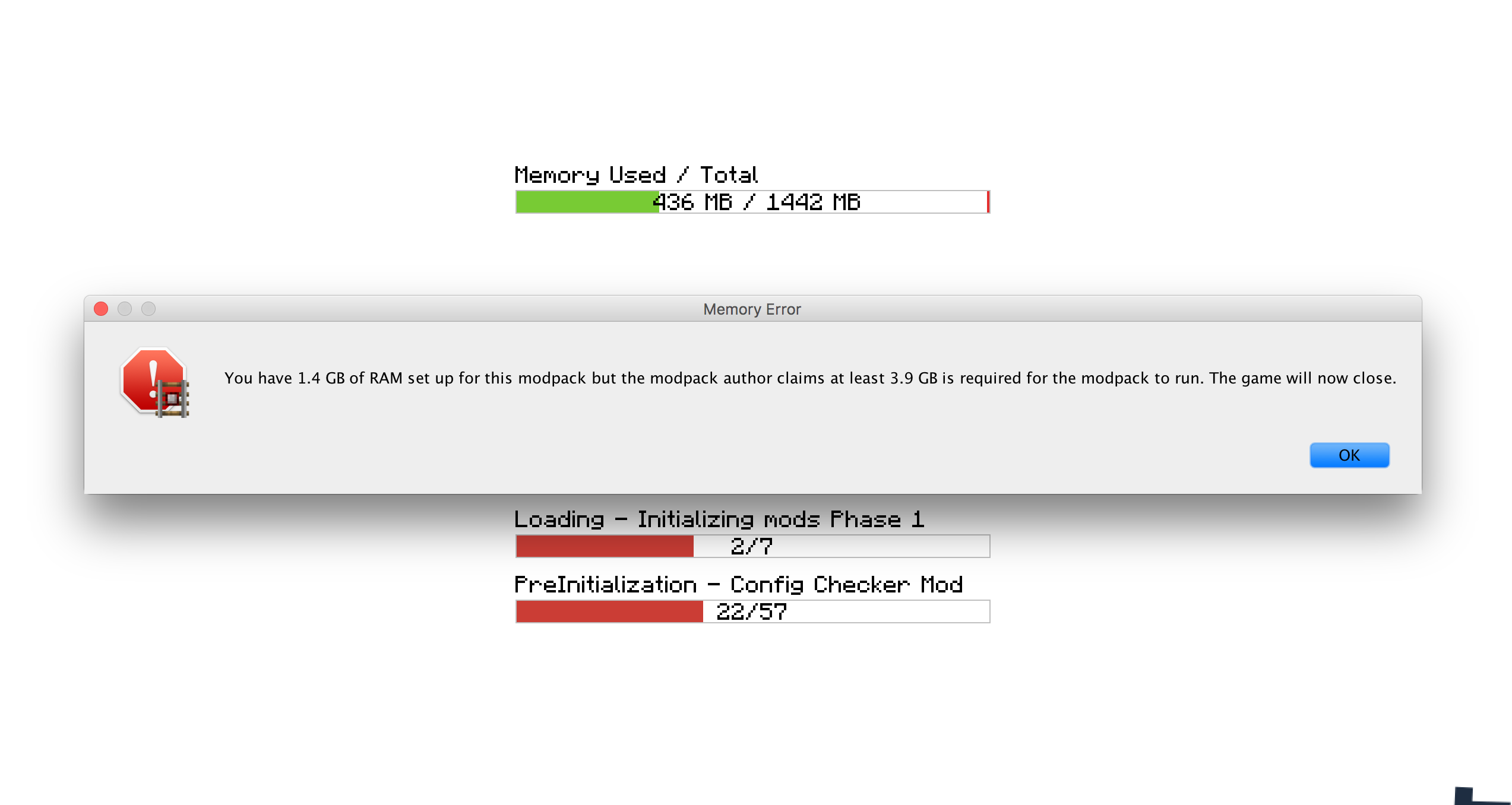
- 모드팩 실행에 필요한 RAM 용량을 설정합니다. 이 요구 사항이 충족되지 않으면 사용자에게 알리고 게임을 종료합니다.
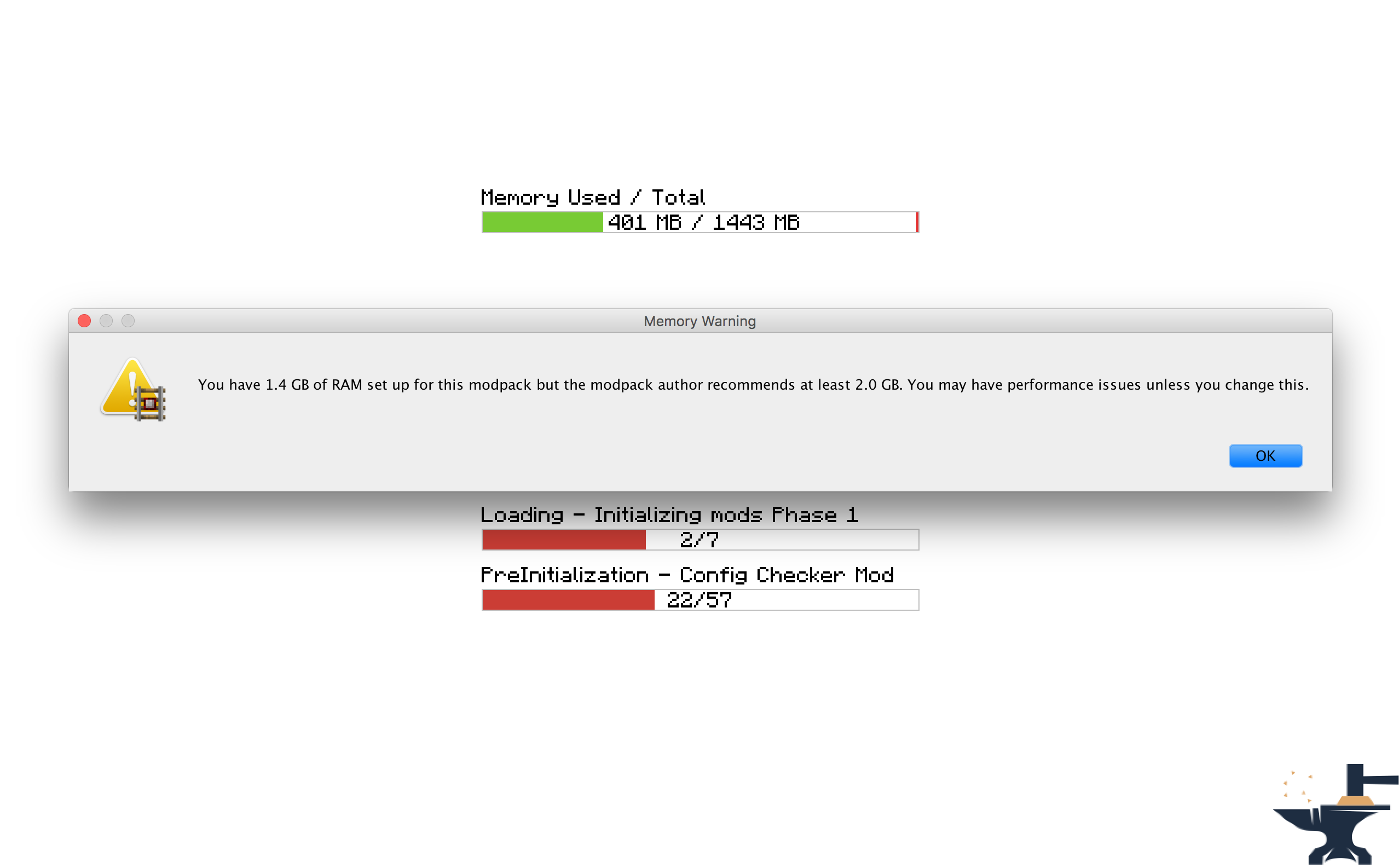
- 모드팩 실행에 권장되는 RAM 용량을 설정합니다. 이 요구 사항이 충족되지 않으면 사용자에게 알립니다.
- 게임 실행 시 열 웹사이트를 설정합니다. 모드팩 웹사이트나 지원 페이지를 여는 데 유용합니다.
- 게임이 로드될 때 표시할 사용자 지정 메시지를 설정합니다. 예를 들어 크레딧을 표시할 수 있습니다.
- RAM 요구 사항이 충족되지 않았을 때 표시할 사용자 지정 메시지를 설정합니다. 모드를 여러분의 모드팩 분위기에 맞추는 데 유용합니다.
- 메시지 상자가 다른 창 위에 표시될지 여부를 변경할 수 있습니다.
- 게임이 로드될 때 채팅에 표시되는 사용자 지정 인사 메시지를 설정합니다.
라이선스
이 모드를 어떤 모드팩에서든 자유롭게 사용하고 다른 포럼에도 게시하셔도 됩니다. 다만 여기로 돌아오는 링크를 꼭 넣어 주세요. 전체 라이선스 보기
스크린샷
설정 방법 (Minecraft 1.13 +
이 모드를 여러분의 모드팩에 포함시키는 것을 강력히 추천합니다: https://www.curseforge.com/minecraft/mc-mods/configured.
이렇게 하면 게임 내에서 설정할 수 있어 작업이 훨씬 쉬워집니다.
1단계) 메인 메뉴 화면에서 'Mods' 버튼을 클릭합니다.
2단계) 왼쪽 모드 목록에서 'Modpack Config Checker'를 선택합니다.
3단계) 왼쪽 아래의 'Config' 버튼을 클릭합니다.
참고
- 설정이 무엇을 하는지 잘 모르겠다면, 그 위에 마우스를 올리면 작은 설명이 표시되어 더 명확해질 것입니다. 그래도 잘 모르겠다면 직접 실험해 보세요!! 아니면 원하신다면 저에게 PM을 보내거나 이 스레드에 댓글을 남겨 주세요. 모드의 어떤 작동 방식이든 기꺼이 설명해 드리겠습니다.
수동 설정 (1.13.x - 1.20.x)
수동 설정 (게임 폴더 내 위치: Config\concheckrmd-client.toml)
이 섹션에서는 선택적 GUI 없이 모드를 수동으로 설정하는 방법을 보여 줍니다. 메모장이나 텍스트 편집기로 설정 파일을 여세요.
설정 파일의 색상 표시 버전입니다. 어떤 값을 변경할 수 있고 없는지 보여 줍니다.
색상 키
파란색: Boolean ('true' 또는 'false'로만 변경할 수 있음을 의미)
빨간색: String (아무 텍스트로나 변경할 수 있음을 의미. 예: 'Hello World')
초록색: Integers (아무 숫자로나 변경할 수 있음을 의미. 예: '512')
["Customisable Chat Greeting Message"] The color of the message to be displayed in chat. Allowed Values: Blue, Green, Red, Aqua, Yellow, White, Black, Grey, Purple, DarkBlue, DarkGreen, DarkRed, DarkPurple "3) Greeting Message Color" = "Yellow" The text to be displayed in chat. "2) Greeting Message Text" = "Hello there! Welcome to my modpack." Customisable message that will be displayed in chat when a world is loaded. "1) Display Chat Greeting Message?" = true
["Customisable Start Message"] Customisable message that will appear each time the game starts. This is useful for displaying credits. "1) Display message box?" = true Will the window show on top of all other windows? Recommended to keep set to True. "2) Display message box topmost?" = true The text that will be displayed in the message box. "3) Message Box Text" = "Hello Modpack Users! Made by mattr"
["Customisable First Start Message"] A message box that will be displayed when the game is started for the first time. This is useful for displaying instructions. "1) Display message box?" = true Will the window show on top of all other windows? Recommended to keep set to True. "2) Display message box topmost?" = true The text that will be displayed in the message box. "3) Message Box Text" = "Welcome. Thank you for starting my mofdpack for the first time!"
["Open A Website when the Game Starts"] Opens a webpage when the game starts. This is useful for modpack support. "1) Display Website when game starts?" = true The URL of the website that will be displayed. This can be formatted like: http://google.com, www.google.com or google.com. "2) Website URL" = "minecraft.curseforge.com/projects/config-checker"
["Amount of RAM Recommended for Game to Start"] The amount of RAM recommended for stable gameplay. Range: 128 ~ 51200 "1) Ram Recommended (IN MB)" = 12048 If the player has less than the recommended amount of RAM assigned to the modpack then a warning will be displayed when the game is started. "2) Check RAM meets recommendation?" = true The custom message to be displayed if you have set the previous setting to 'True'. Will display custom message instead of the default text. "5) Custom Message" = "You should assign more RAM to experience better performance." Will the window show on top of all other windows? I highly recommend this is left as true. "3) Display message box topmost?" = true Customise the text that appears in the warning message. Will display custom message instead of the default text. "4) Customise low RAM Warning?" = false
["Recommended RAM Chat Message"] The amount of RAM recommended for stable gameplay. Range: 128 ~ 51200 "1) Ram Recommended (IN MB)" = 51200 If the player has less than the recommended amount of RAM assigned to the modpack then a warning will be displayed in chat when a world is loaded. "2) Check RAM meets recommendation?" = true Customise the text that appears in the warning message. Will display custom message instead of the default text. "3) Customise low RAM Warning?" = true The custom message to be displayed in chat if you have set the previous setting to 'True'. Will display custom message instead of the default text. "4) Custom Message" = "You should assign more RAM to experience better performance."
["Amount of RAM Required for Game to Start"] If the player has less than the required amount of RAM assigned to the modpack then they will be alerted as the game starts and the game will close. "2) Check RAM meets requirement?" = true The amount of RAM required for the game to run. Range: 128 ~ 51200 "1) Ram Required (IN MB)" = 1024 The custom message to be displayed if you have set the previous setting to 'True'. Will display custom message instead of the default text. "5) Custom Message" = "You need more RAM. The game will close." Will the window show on top of all other windows? I highly recommend this is left as true. "3) Display message box topmost?" = true Customise the text that appears in the error message. Will display custom message instead of the default text. "4) Display custom text in messagebox?" = false
["Game Launch Time Limit"] If the game exceeds the launch timeout then a message box will be displayed and the game will close. "2) Check game meets launch timeout?" = false The custom message to be displayed if you have set the previous setting to 'True'. Will display custom message instead of the default text. "5) Custom Message" = "The game has taken too long too start to start this modpack. This is probably due to insufficient system resources. The game will now close." The maximum amount of time the game will be allowed to spend booting. (IN SECONDS) Range: 5 ~ 5400 "1) Launch Timeout (IN SECONDS)" = 30 Will the window show on top of all other windows? I highly recommend this is left as true. "3) Display message box topmost?" = true Customise the text that appears in the error message. Will display custom message instead of the default text. "4) Display custom text in error message?" = false
설정 방법 (Minecraft 1.11 + 1.12)
버전 1.6부터 모드는 게임 내에서 완전히 설정할 수 있습니다. 즉, 더 이상 설정 파일을 수동으로 편집할 필요가 없어 모드를 훨씬 쉽게 사용할 수 있습니다. 설정 화면은 다음 단계를 따라 접근할 수 있습니다:
1단계) 메인 메뉴 화면에서 'Mods' 버튼을 클릭합니다.
2단계) 왼쪽 모드 목록에서 'Modpack Config Checker'를 선택합니다.
3단계) 왼쪽 아래의 'Config' 버튼을 클릭합니다.
참고
- 설정이 무엇을 하는지 잘 모르겠다면, 그 위에 마우스를 올리면 작은 설명이 표시되어 더 명확해질 것입니다. 그래도 잘 모르겠다면 직접 실험해 보세요!! 아니면 원하신다면 저에게 PM을 보내거나 이 스레드에 댓글을 남겨 주세요. 모드의 어떤 작동 방식이든 기꺼이 설명해 드리겠습니다.
- 모든 설정이 모드의 업데이트 버전으로 이전되는 마이그레이션 도구를 만들었습니다. 이는 원활한 이전을 보장하므로 일반 사용자에게는 아무런 영향이 없습니다. 예전 설정 파일이 감지되면 게임이 자동으로 예전 설정을 가져올 수 있는 옵션을 제공합니다. 이 기능에 많은 시간을 들였기 때문에 성공률이 매우 매우 높습니다.
- 게임 내 설정은 (현재로서는) 1.11.2 이상에서만 사용할 수 있습니다. 이는 예전 버전의 forge에서 이 구성이 훨씬 더 복잡하기 때문입니다. 더 낮은 Minecraft 버전을 사용 중이라면 아래에 설명된 레거시 설정을 사용해야 합니다. 관심이 충분하다면 나중에 1.10.2나 1.7.10으로 백포트할 수도 있지만, 지금은 이 버전들이 더 이상 업데이트되지 않습니다.
레거시 설정 (Minecraft 1.10 이하) (게임 폴더 내 위치: Config/concheckrmd.cfg)
설정 파일의 색상 표시 버전입니다. 어떤 값을 변경할 수 있고 없는지 보여 줍니다.
색상 키
파란색: Boolean ('true' 또는 'false'로만 변경할 수 있음을 의미)
빨간색: String (아무 텍스트로나 변경할 수 있음을 의미. 예: 'Hello World')
초록색: Integers (아무 숫자로나 변경할 수 있음을 의미. 예: '512')
설정 파일
"custom greeting message" {
B:"1. Display custom greeting message when joining a world?"=false
게임이 로드될 때 채팅에 표시될 메시지입니다. 'Display custom greeting message when joining a world?'가 true일 때만 표시됩니다 [default: Hello there! Welcome to my modpack.]
S:"2. Custom greeting message text"=Hello there! Welcome to my modpack. }
"custom messagebox" { B:"1. Show custom messagebox when game loads?"=false B:"2. Display message box on top of all other windows?"=true
팝업 텍스트를 입력하세요. 'Show custom messagebox when game loads?'가 true일 때만 표시됩니다 [default: Hello World!!]
S:"3. Custom Messagebox text"=Hello World!! }
"display webpage" { B:"1. Open web browser to URL when game loads?"=false
실행할 URL을 입력하세요. 'Open web browser to URL when game loads?'가 true일 때만 표시됩니다 [default: http://minecraft.curseforge.com/projects/config-checker]
S:"2. URL to webpage"=minecraft.curseforge.com/projects/config-checker }
"ram recommendation" { I:"1. Ram Recommended (IN MB)"=2048 B:"2. Check RAM meets recommendation?"=true B:"3. Display message box on top of all other windows?"=true B:"4. Display custom text in message box if RAM recommendations not met?"=false
RAM 권장 사항이 충족되지 않았을 때 표시할 사용자 지정 텍스트를 입력하세요. 'Display custom text in message box if RAM recommendations not met?'가 true일 때만 표시됩니다 [default: You should add more RAM.]
S:"5. Custom recommendation text"=You should add more RAM. B:"6. Display warning in game chat if RAM recommendation not met?"=true B:"7. Customise game chat RAM recommendation message?"=false
RAM 권장 사항이 충족되지 않았을 때 게임 채팅에 표시할 사용자 지정 텍스트를 입력하세요. 'Customise game chat RAM recommendation message?"'가 true일 때만 표시됩니다 [default: [WARNING] You should assign more RAM to this modpack.]
S:"8. Custom chat message"=[WARNING] You should assign more RAM to this modpack. }
"ram requirement" { I:"1. Ram Required (IN MB)"=1024 B:"2. Check RAM meets requirement?"=false B:"3. Display message box on top of all other windows?"=true B:"4. Display custom text in message box if RAM requirement not met?"=false
RAM 요구 사항이 충족되지 않았을 때 표시할 사용자 지정 텍스트를 입력하세요. 'Display custom text in message box if RAM requirement not met?'가 true일 때만 표시됩니다 [default: You need more RAM.]
S:"5. Custom requirement text"=You need more RAM. }
Modpack Configuration Checker 설치 방법
With Millida Launcher
Install Millida Launcher
The launcher is free: download it at millida.net/launcher and sign in with any nickname.
Click “Install” on this page
The launcher opens and installs the mod for Minecraft 1.12–1.21 on Fabric or Forge automatically.
Launch the game
A profile with it appears in the launcher: click “Play”.
Manually
Install Fabric or Forge
The loader must match the game version of the mod file, for example Minecraft 1.21. After installing it, a separate profile appears in your launcher.
Download the file for your version
In the version list above, pick the file Modpack Configuration Checker-1.21.x-v1.9.5-forge.jar (146 KB) for your game version and loader.
Put it in the mods folder
The folder is inside .minecraft (Windows: %appdata%\.minecraft\mods). If it does not exist, create it.
Launch the loader profile
Open “Mods” in the main menu: Modpack Configuration Checker should be in the list.
Minecraft 1.21 runs on Java 21: with a different Java version the game may close right after launch.
버전
의존성 포함
| Minecraft | 로더 | 파일 | 날짜 | 작업 |
|---|---|---|---|---|
| 1.20.6 | Fabric | Modpack Configuration Checker-1.20.6-v1.9.8-fabric.jar84 KB | ||
| 1.21 | Forge | Modpack Configuration Checker-1.21.x-v1.9.5-forge.jar146 KB | ||
| 1.12.1 | — | Modpack Configuration Checker-1.12.2-v1.9.5.jar154 KB | ||
| 1.14.4 | — | Modpack Configuration Checker-1.14.x-v1.7.1.jar135 KB |
FAQ
Which Minecraft versions does Modpack Configuration Checker work on?
There are files for 1.21, 1.20.6, 1.14.4, 1.12.2, 1.12.1, 1.12. The newest is 1.21.
Does Modpack Configuration Checker need other mods?
The author lists no required dependencies: the Fabric or Forge loader is enough.
Which Java does Modpack Configuration Checker need?
Minecraft 1.21 runs on Java 21. If the game closes right after launch, the usual cause is the wrong Java version in the profile settings.
리뷰
Modpack Configuration Checker의 첫 평가를 남겨 보세요