Minecraft 1.19.2, 1.18.2用SignBoard プラグイン
Attach unlimited text to signs and living entities and run commands when they're clicked!
SignBoard v1.6.16
(For Spigot/Paper/Bukkit 1.8.7 to 1.19.3 - For details, see version support, below)
Write on signs to your heart's content
Now with multi-language support
- Attach unlimited text to signs or living entities (including armor stands, villagers, mobs and Citizens2 NPCs!).
- Give text out as a book when players look at the sign/entity.
- Run commands when the player:
- looks at a sign/entity
- looks away from a sign/entity
- clicks a sign
- attacks or kills an entity
Do you have players who speak different languages? Or want to communicate different content to different player classes?SignBoard can now show group-specific content, so you can show players texts in different languages, or according to their player classes! Read more in the Categories section, below.
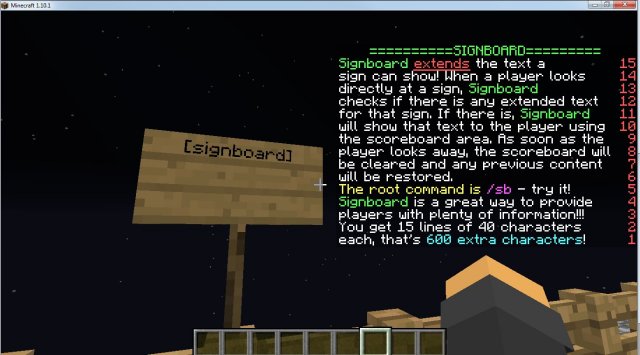
Tired of the cramped space on your signs? Now you can have an unlimited amount of text shown with your signs! You can even attach that text to living entities! AND you can attach commands to signs and entities to run at different times!
With SignBoard, you create "boards" of text and attach these boards to signs or living entities. Each board can hold up to 15 lines (a total of 600 characters per board). You can also group several boards into a "set" and use the set as a single body of text.
When players look at a sign or entity, the scoreboard area is used to show them the text on the boards. It's great for communicating... er, well, anything, really, in a game. Admins can provide players with instructions, players can show visitors detailed info about their builds, RPG games can provide detailed lore when a party enters a room... There's no limit.
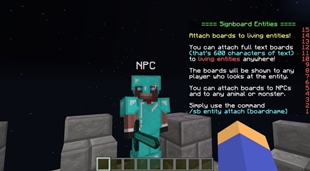
In much the same way as you attach boards to signs, Signboard lets you attach boards or sets to living entities! You can attach a board or a set to a villager or an NPC, for example, and whenever a player looks at the NPC, the text will be shown. (Armor stands also work as living entities).
When players are shown a set of boards, only one board is shown at a time. Players can cycle back and forth between the boards by right- or left-clicking the sign/entity. That way, a set works like pages in a book.
You can also attach commands to both signs and entities, and control when these commands will run. Commands can be run when the player looks at a sign/entity, looks away from a sign/entity, clicks a sign, attacks or kills an entity.
As an added perk, SignBoard also lets you edit sign lines without having to break the sign and write everything from scratch - just look at a sign you've created and use the command /sb sign lineX [text] (see below).

Demo video:
(In English)
(In Spanish, courtesy of Ajneb97.)
Version support
SignBoard v1.6.3 and above support all Bukkit/Spigot/Paper versions from 1.13.3 to 1.19.3. SignBoard v1.6.2 supports all Bukkit/Spigot/Paper versions from 1.8.7 to 1.16.1.
(Signboard has its own set variables and supports Placeholder API)
Multi-language support
As of version 1.6.6, SignBoard supports different languages for its interface (menus and messages). This allows users to choose their own language preference and use the plugin in that language. Right now it has options for English (US), Portuguese (BR), and Spanish (CO), but you can translate the locale file into other languages - just make sure to share them with us, and we'll include them in future releases of SignBoard!
Check out the /sb locale commands.
The default text for new boards has also been moved into the locale files. So now when a new board is created, each player will see its default text in their (chosen) preferred language.
In fact. every line on every board gets processed for translations. So, if you were to add a line to the locale files that said , "This is a board line": "Esta é uma linha de placa" then every board containing "This is a board line" would show the translated version from the respective locale file, according to each player's preferred locale.
Installation
Just drop the jar in your plugins folder and restart the server
Basic usage
SignBoard works by letting you create "boards" and then attach those "boards" to one or more signs or to living creatures - animals, villagers, monsters, armor stands, NPCs and even real live players (only OPs can attach boards to players).
You can group boards into sets by using the /sb set command. A set then behaves like a single body of text, and the various boards it contains will be shown in sequence as the player right or left-clicks.
You can also use the /sb sign attach and /sb sign detach commands to attach or remove a board or set from a sign.
Attach and detach a board or set from a living entity with the commands /sb entity attach and /sb entity detach.
The content of the board is shown in the scorecard area, so each board can have up to 15 lines of 40 characters each.
You can use all of the text color and formatting tags normally used in Minecraft (&0 = black; &1 = dark blue;| &2 = dark green; &3 = dark acqua; &4 = dark red; &5 = dark purple; &6 = gold; &7 = grey; &8 = dark grey; &9 = blue; &a = green; &b = acqua; &c = red; &d = light purple; &e = yellow; &f = white; &k = magic; &l = bold; &m = strikethrough; &n = underline; &o = italic; &r = reset).
Getting Started
- Come up with a name for a new board
- Create a board with the command /sb board new [boardname]
- Place a sign somewhere, look at the sign and attach the board to it with the command /sb sign attach [boardname]
- If you want to attach the board to a living entity, look at it and use the command /sb entity attach [boardname]
- Look at the sign or entity - SignBoard will use the scoreboard area to show the default content for your new board
- Edit your board with the command /sb board [boardname] lineX [text] (you don't have to be looking at the sign/entity for this)
- Group several boards into a set with the /sb set command. Then attach the set to a sign or entity with /sb sign attach and /sb entity attach. When you look at the sign/entity, the first board in the set will be shown; cycle through the other boards by right- or left-clicking the sign/entity.
Tips & Notes
- Existing scoreboards are respected and will be reloaded as soon as the player looks away from the sign.
- You can only edit a sign that you could break. When you try to use a sign, SignBoard tests if you would be able to break and replace it, and only then lets you use it. You'll also be able to edit the sign with /sb sign lineX text.
- Blank lines - both in signs and on boards, you can replace a current line with a blank line; just set the line's content to &r and it'll go blank.
- You will only be able to change boards that you created, but there's nothing keeping you from using an existing board name (e.g. [boardname]) on a sign, even if that board was created by another player.
- To use the attach/detach commands on a sign, you must have the ability to break the sign. To use the attach/detach commands on an entity, you must own the board in question. Unless you're OP, in which case you can do anything :).
Editing a board's content
When you create a new board, it comes with a default content. You can edit the lines on any board in three different ways:
- /sb board [boardname] lineX [content] - changes the content of line X directly
- /sb board [boardname] lineX-Y [content] - changes the content of lines X thru Y (e.g. 1-3, or 3-1 - the order matters)
- /sb board [boardname] linepushX [content] - changes the content of lines starting on lineX, and pushes any existing lines down.
[content] can be any text, and in the last two commands it can even span multiple lines - as long as you use \n to indicate a line break.
For example, the content text 4\n text 3\n text 2 contains two line breaks, so it has text for three lines. If you use the command
/sb board [boardname] line4-3 text 4\n text 3\n text 2
you will replace the contents of line 4 with "text 4", and the contents of line 3 with "text 3"; "text 2" would be ignored, since you only specified two lines to update (4-3).
Similarly, if you use the command
/sb board [boardname] linepush4 text 4\n text 3
you will replace the contents of line 4 with "text 4", of line 3 with "text 3", AND the old contents of lines 4,3,2,1 would be "pushed down" as the new content is inserted, causing line 2 to end up with the old content for line 4, and line 1 to end up with the old content for line 3.
A few of things to remember:
- The title line is line16.
- Each line can only hold 40 characters; anything beyond that will be truncated.
- No two lines can have the same content, so if you want two lines to look the same, insert invisible &r characters in them to make them different from each other.
Showing multiple boards with board sets
Starting on version 1.3.2, SignBoard lets you show multiple boards to your players whenever they look at a sign or living entity. This is accomplished by grouping a number of boards into a set. Use the /sb set commands to create, delete and list existing sets. Attach and detach sets from signs and entities the same way you attach/detach boards: with the /sb sign and /sb entity attach and detach commands. Once a set is attached, the first board on the set will be shown when the player looks at the sign/entity. Then the player can cycle through the different boards by left- and right-clicking. Sets can contain as many boards as you want.
A couple of notes about entities with sets attached to them:
- Right-clicks: When a set is attached to an entity, the first right-click on the entity is taken over by SignBoard. A second right-click on the entity (within half a second), though, will be processed normally. For example, if you attach a set to a villager, a single right-click on the villager will cycle to the previous board on the set, and the villager trade GUI will not be shown. However, if you double right-click the villager, the first right click will cycle the board and the second one will bring up the trade GUI.
- Left-clicks: When a set is attached to an entity, you will have to (left) click that entity to cycle through the boards; clicking an entity normally means you're attacking and potentially damaging that entity. Therefore, when an entity has a set attached SignBoard intercepts the click and cancels the damage. The "/sb entity onattack" command will still work, but the entity will take no damage.
Giving out books
When a player looks at a sign or at an entity, you can choose to show the board text on screen or to give the text as a book to the player - or both, or neither. The commands /sb sign show_board and /sb entity show_board toggle the showing of the board's text on the screen. If you would rather give the player a book with the text, the commands /sb sign give_book and /sb entity give_book toggle that function. You can also use these commands to both show the board on the screen and give the book, or to neither show the board nor give the book.
Use the /sb sign status and /sb entity status to check the status of all options defined.
As of version 1.6.12, the command /sb board give_as_book [boardname] [playername] can be used to immediately give a certain board's content to a player as a book. This command can be used, for example, in a sign's or entity's "run" commands to give out the corresponding book only when the sign or entity is clicked on, instead of when the player looks at it.
Formatting books
SignBoard will automatically convert your board texts to place them in books (when show_book is enabled). Since the size of the lines in a book and on the scorecard are so different, and a book has page breaks, SignBoard will attempt to break the lines and the pages neatly, but some fine-tuning may be necessary. Here are some tips to help you with that:
- Board lines containing only &r will show as blank lines on the book.
- Use \n anywhere on your boards to break the current book line. The \n will be ignored when the board is shown on-screen.
- When SignBoard breaks a long line, it will try to do so at full-word boundaries and will try to insert blank spaces as appropriate. But you may need to manage spaces at the end or beginning of certain lines on the board.
- If SignBoard finds a board line made up of a single character repeated several times (like '================'), instead of breaking that line in two book lines, it will shorten it so it fits into a single book line.
Running commands on sign click or on entity attack or kill
Just as you attach boards to signs and entities, you can also attach commands that will be run at specific times. These can be any command that an admin can issue in-game. The commands will be run as if they were issued by the player and as if the player had admin authority. The commands accept variable substitution just like any SignBoard command.
Commands are specified as a sequence, separated by a vertical bar, like | | ... | .
As of version 1.3.3, you can also insert delays in the sequence, with the syntax [Tu], where T is an integer > 0 and u is a time unit: 's', 'm' or 'h'. For example, a sequence of [5s] | | [2m] | , when executed, will wait 5 seconds before running and then 2 additional minutes before running . Use the delays with care; delayed commands will be executed even if the player is no longer looking at the sign/entity, or even gone from the server.
Certain commands can only be run from the server console. As of version 1.6.13, you can prefix your command with rfc to tell SignBoard to run the command from the server console. Like this: /sb sign before rfc tell Ebaldino hi.
The following SignBoard commands control what happens and when:
- /sb sign before and /sb entity before - Let you specify a list of commands to be run every time a player looks at a sign or an entity, just before the board text is shown. (If the show_board option is off, the commands still run).
- /sb sign after and /sb entity after - Let you specify a list of commands to be run every time a player looks away from asign or an entity, just after the board text is hidden. (If the show_board option is off, the commands still run).
- /sb sign onclick - Lets you specify a list of commands to be run when the player clicks on the sign.
/sb sign onrightclick - Lets you specify a list of commands to be run when the player right-clicks on the sign.
/sb sign onshiftclick and /sb sign onrightshiftclick - Let you specify a list of commands to be run when the player shift-clicks or shift-right-clicks the sign, respectively.
- /sb entity onattack - Lets you specify a list of commands to be run every time the entity is attacked.
- /sb entity onkill - Lets you specify a list of commands to be run when the entity is killed.
Use the /sb sign status and /sb entity status to check the status of all options defined.
Variables
Use any of these variables anywhere in your boards. Make sure to include the "{" and "}".
When the board is shown to a player, the variables will be replaced with their real-time values.
- {ServerDate} = the current date.
- {ServerTime} = the current time.
- {PlayersNow} = the number of players on the server.
- {PlayersMax} = the max. number of players on the server.
- {PName} = the player's name.
- {PDisplayName} = the player's display name.
- {PHealth} = the player's health.
- {PCoords} = the player's current position.
- {PMobKills} = the number of mobs killed by the player.
- {PKills} = the number of players killed by the player.
- {PDeaths} = the number times the player has died.
- {PTimeAlive} = the time since the player last died.
- {PMoney} = the player's money (requires Vault).
Placeholder API
Placeholder API support started with Signboard version 1.1.8. This allows you to use variables ("placeholders") from many other plugins, in addition to an extensive list of "native" Placeholder API variables.
To use Placeholder API, download the plugin, drop it into your plugins folder and restart the server. In the game, issue the command /papi ecloud list all and look for the placeholder group you want. Then click on it and accept the command to download it. Then all you have to do is use the placeholders like variables on your boards, surrounded by '%' (%placeholder%).
Placeholder API native variables and their groups are listed here.
FeatherBoard Compatibility
As of version 1.4.9, SignBoard uses the FeatherBoard API for out-of-the-box compatibility. A special thanks to jamisen10 for bringing the FB API to my attention.
Up to version 1.4.8, SignBoard, implemented a command-based FeatherBoard compatibility workaround. It detected the presence of FB and then issued "/fb off -s" just before showing a board to a user (to turn FB off for that user), and then "/fb on -s" when the user moved away (to turn FB back on).
If you have another scorecard plugin that is keeping SignBoard from properly showing its boards, and that plugin has "off" and "on" commands such as those described above, you can use the "cmd_before" and "cmd_after" options in config.yml to implement the same "off/on" mechanism as for FeatherBoard. Or you can do the same for individual boards, using the board commands. A special thanks to gmalone for helping me work out this solution!
Categories
Categories allow you to communicate different content to different groups of players.
This is a very powerful feature that lets you do some interesting things, for example:
- Show your players content in their preferred language. This is not a translation feature - you still have to create the content in the different languages, but you can attach a single board to a sign or entity, and have SignBoard pick the right version of that board to show, depending on the player who's looking at it.
- Show specific boards for different character classes. When a wizard looks at a sign in a dungeon room, they will see the board you prepared for wizards; when a fighter looks at the same sign, they will see the board for fighters, and so on.
- Show specific boards for different player ranks. When a Gold player looks a sign in a Depot, they will see the board you prepared for Gold players; when a Platinum player looks at the same sign, they will see the board for Platinum players...
And it's not just for languages or classes! Categories also work for any other groups of players you can think of!
How does this work? It depends on whether or not you use permissions on your server:
- CATEGORIES IF YOU USE PERMISSIONS
SignBoardのインストール方法
A server on Paper or Spigot
The plugin runs on the server core for Minecraft 1.9–1.19.3; players do not need to install anything.
File goes into the plugins folder
Download the file SignBoard.jar (185 KB) and put it into the server’s plugins folder.
Restart the server
On startup the plugin creates its own settings folder in plugins.
Use the “To server” button
On Millida Hosting, the button at the top of the page uploads the file to your server and restarts it for you.
Minecraft 1.19.3 runs on Java 17: with a different Java version the game may close right after launch.
バージョン
依存関係あり
| Minecraft | ローダー | ファイル | 日付 | 操作 |
|---|---|---|---|---|
| 1.16 | — | SignBoard v1.6.16185 KB | ||
| 1.9 | — | SignBoard v1.2.089.3 KB | ||
| 1.10 | — | SignBoard v0.9.154.9 KB |
レビュー
SignBoardの最初の評価を書きませんか