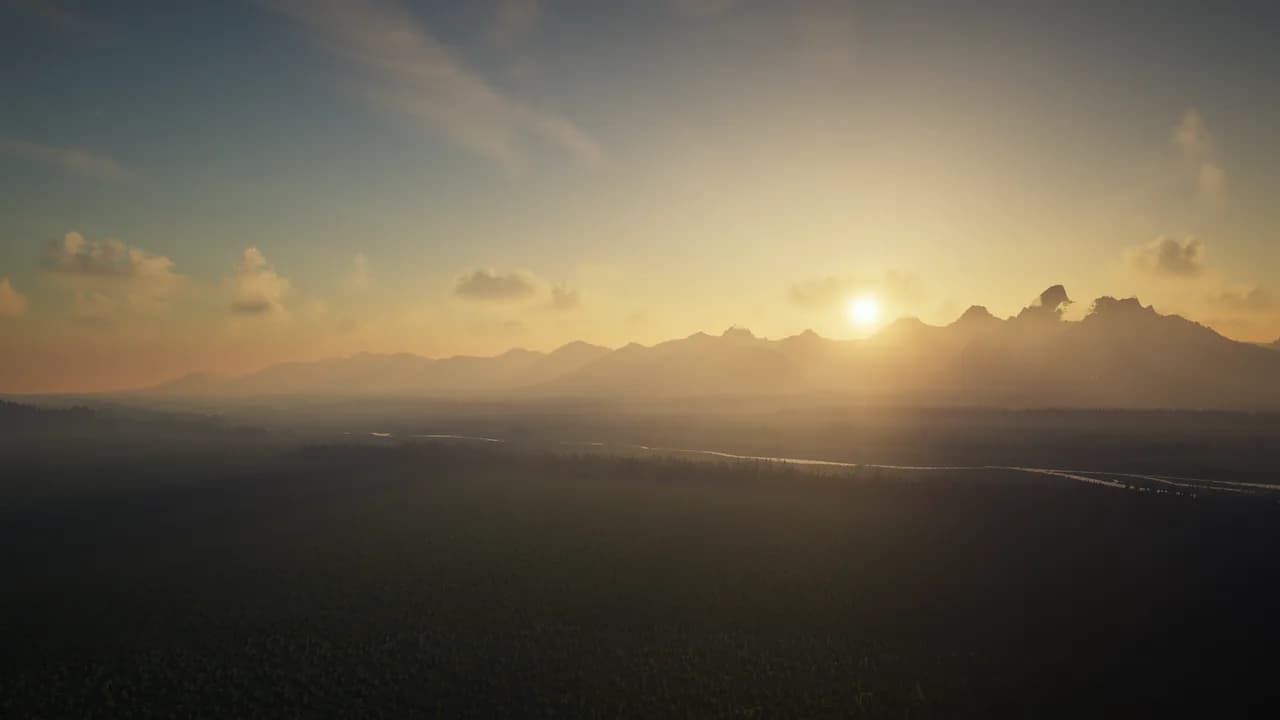
ResolutionControl+ Mod pour Minecraft 1.19.4
Vous permet de définir les résolutions de rendu et de prendre de grandes captures d'écran.
- vues
- 6 vues
- Mis à jour
- Mis à jour 18.10.2026
- 1.19.4
 Fabric
ResolutionControl+
ResolutionControl+ is a fork of Resolution Control with additional functionality.
Features
Resolution Scaling
ResolutionControl+ allows you to change Minecraft's render resolution separately from the HUD elements. If you have a good GPU, you can increase the multiplier for anti-aliasing. Otherwise, you can lower the multiplier to improve performance or give Minecraft a retro style. You can also set a custom multiplier value by pressing the S button.
Additionally, you can set the upscale/downscale algorithm used to scale the render to the viewport. Linear is useful as an anti-aliasing filter, and nearest neighbor generally looks better for lower than native resolutions.
Screenshots
ResolutionControl+ can be used to take larger than native resolution screenshots. To do this, use the Screenshot Framebuffer keybind which is unbound by default.
Compared to Fabrishot, this implementation does not lock up the game until the screenshot is saved. This makes taking large screenshots much faster. And while a screenshot is being processed, you can take another one without any problems.
Here is the time it takes to take a 16k screenshot, on an i7 4770 and GTX 1060:
Fabrishot: 12 seconds (pause)
ResolutionControl+: less than 1 second (initial pause) + 13 seconds (background processing)
Settings
More information in the README.
Compatibility
Currently, ResolutionControl+ does not work with Fabulous Graphics.
Sodium - Compatible
Canvas Renderer - Mostly compatible, lower resolutions break HUD item rendering
Optifine - Compatible, stacks with its own render scale implementation
Comment installer ResolutionControl+
With Millida Launcher
Install Millida Launcher
The launcher is free: download it at millida.net/launcher and sign in with any nickname.
Click “Install” on this page
The launcher opens and installs the mod for Minecraft 1.19.4 on Fabric automatically.
Launch the game
A profile with it appears in the launcher: click “Play”.
Manually
Install Fabric
The loader must match the game version of the mod file, for example Minecraft 1.19.4. After installing it, a separate profile appears in your launcher.
Download the file for your version
In the version list above, pick the file resolution-control-plus-1.19.4-3.0.0.jar (63 KB) for your game version.
Put it in the mods folder
The folder is inside .minecraft (Windows: %appdata%\.minecraft\mods). If it does not exist, create it.
Launch the loader profile
Open “Mods” in the main menu: ResolutionControl+ should be in the list.
Minecraft 1.19.4 runs on Java 17: with a different Java version the game may close right after launch.
Versions
Avec dépendances
| Minecraft | Loader | Fichier | Date | Actions |
|---|---|---|---|---|
| — | — | resolution-control-plus-1.20-3.0.0.jar63 Ko | ||
| 1.19.4 | Fabric | resolution-control-plus-1.19.4-3.0.063 Ko |
Avis
Soyez le premier à noter ResolutionControl+