
Time Stop Clock Mod für Minecraft 1.20.1, 1.21.1
Lässt dich die Zeit in Minecraft kontrollieren!
 NeoForge
 Forge
Forge Fabric
Time Stop Clock
Features:
Version 1.19.x has been removed, and this mod has been completely rewritten.
Items:
- Time Clock - Ability to time stop, slow down (0.5x) and speed up (2.0x)
- Arrow - Can shoot most projectiles. Hold Shift to view shootable items
- Staff - No cooldown and no casting time (requires Iron's Spells 'n Spellbooks, suitable for use during time stop)
- Time Box Arrow - Quick creation of a TimeBox
- Rotating Item - Summons items that orbit around you, launch them as projectiles
- Rotating Block - Summons blocks that orbit around you, launch them as projectiles
Spells
- Time Freeze - Freezes the time of the current world for x seconds. The default duration is 6 seconds. The duration of Iron's Spells 'n Spellbooks increases with the level, and Ars Nouveau allow for free configuration.
- Time Box - When hitting a target, a Time Box is generated. Time inside the box is in a frozen state (this includes the ability to freeze only entities, blocks, and particles). When hitting a creature, a Time Box with a hitbox size of ×1.5 is generated; when hitting a block, a 5×5×5-sized Time Box is generated. The default duration is 6 seconds, and this is an exclusive spell of Ars Nouveau.
Time Box
- Time inside the box is in a frozen state, and it can only freeze entities, blocks, liquids, and particles. Due to technical limitations, it can only be generated via commands or spells. The Time Box can be reversed through the configuration file. After reversal, time outside the Time Box will be in a frozen state, while time inside the box remains normal.
Commands:
- /timeclock tickrate <value> - Set the game tickrate
- /timeclock virtualtickrate <value> — Sets the virtual tickrate of the current world
- /timeclock entityVirtualTickrate <target> <value> — Sets the virtual tickrate of target entities
- /timeclock pauseTime <true/false> - Set whether to enable time stop, can be used to forcibly enable or disable time stop
- /timeclock whitelist list - View the whitelist
- /timeclock whitelist list <true/false> - Same as above, but choose whether to output to the log
- /timeclock whitelist clear - Remove all entities in the whitelist
- /timeclock whitelist remove <target> - Remove the target from the whitelist
- /timeclock whitelist remove uuid <UUID> - Remove the UUID from the whitelist.
- /timeclock whitelist add <target> - Add the target to the whitelist.
- /timeclock config reload - Reload the config (required after making modifications to the external config file).v2.0.0+ Removed.
- /timeclock timebox add <id> <min> <max> <expandAfterCreation> <changeSpeed>
- /timeclock timebox add <id> <min> <max> <expandAfterCreation> <changeSpeed> <color>
- /timeclock timebox add <id> <min> <max> <expandAfterCreation> <changeSpeed> <color> <alpha>
- /timeclock timebox add <id> <min> <max> <expandAfterCreation> <changeSpeed> <color> <alpha> <tick>
- /timeclock timebox add <id> <min> <max> <expandAfterCreation> <changeSpeed> <color> <alpha> <tick> <removeAnimation>
- /timeclock timebox add <id> <min> <max> <expandAfterCreation> <changeSpeed> <color> <alpha> <tick> <removeAnimation> <startCenter>
- /timeclock timebox remove <id
- /timeclock timebox clear
- /timeclock timebox list <logging>
- /timeclock timebox modify <id>[<active/color/expandAfterCreation/changeSpeed>] <active/color/expandAfterCreation/speed>
- /timeclock timebox modify <id> [<color>] <color> <alpha>
Key Bindings
- Left Ctrl + Mouse Wheel - Toggle time clock mode
- Right Ctrl - Open the tooltip overlay config screen
- G - Launch Orbit Objects
Config:
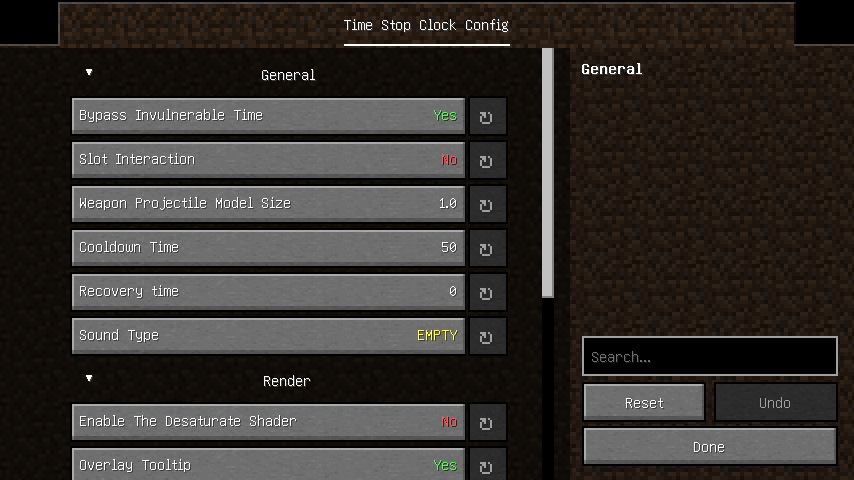
General:
- bypassInvulnerableTime - Enable the desaturate shader to convert the game graphics into a black and white effect
- slotInteraction - Whether interaction with slots in the container is allowed
- model_size -The model size of WeaponProjectile (non-vanilla projectiles shot by arrow in this mod)
- cooldown - Cooldown tick using timeclock
- soundType - The sound played when using the time clock
- ability_tick - Ticks needed to recover back to normal after using time manipulation
- reverse_timebox - Whether to reverse the feature of the Time Box
- blacklist - Blacklist of "arrow" projectiles
Render:
- desaturate - Enable the desaturate shader to convert the game graphics into a black and white effect
- overlay_tooltip - Add overlay of tooltip for mod on the screen
- overlay_tooltip_position - Determines which corner of the screen the tooltip overlay will be rendered
- overlay_background - The background of the tooltip overlay
- overlay_background_color - The color of the overlay tooltip background
- overlay_tooltip_offsetX - The X-axis offset of the overlay tooltip
- overlay_tooltip_offsetY - The Y-axis offset of the overlay tooltip
- overlay_tooltip_color - The color of the overlay tooltip
- glowing_color - Glowing color of whitelisted entity
- timebox_face - Whether to render the time box faces
- timebox_line - Whether to render the time box lines
Screen:
Issue Fix:
- Blueprint conflict crash
- Server startup crash
- Citadel conflict
- Glowing effect not working.
- Tickrate changes in other dimensions are not syncing to the server.
- Geckolib animation is stuttering during timestop.
- "Arrow" are infinitely generating ammunition in survival mode.
- Iron's Spells 'n Spellbooks mod is failing to cast spells properly during timestop.(forge)
- TaCZ cannot fire during time freeze.
- Command blocks cannot execute the commands of this mod.
- Server startup conflict (Forge).
Compatibility:
- Citadel - Conflict with mixin (Fixed in version 1.1.0)
Installation von Time Stop Clock
With Millida Launcher
Install Millida Launcher
The launcher is free: download it at millida.net/launcher and sign in with any nickname.
Click “Install” on this page
The launcher opens and installs the mod for Minecraft 1.20.1–1.21.1 on Fabric, Forge or NeoForge automatically.
Launch the game
A profile with it appears in the launcher: click “Play”.
Manually
Install Fabric, Forge or NeoForge
The loader must match the game version of the mod file, for example Minecraft 1.21.1. After installing it, a separate profile appears in your launcher.
Download the file for your version
In the version list above, pick the file timeclock-4.7.0-neoforge-1.21.1.jar (399 KB) for your game version and loader.
Put it in the mods folder
The folder is inside .minecraft (Windows: %appdata%\.minecraft\mods). If it does not exist, create it.
Launch the loader profile
Open “Mods” in the main menu: Time Stop Clock should be in the list.
Minecraft 1.21.1 runs on Java 21: with a different Java version the game may close right after launch.
Versionen
Mit Abhängigkeiten
| Minecraft | Loader | Datei | Datum | Aktionen |
|---|---|---|---|---|
| 1.20.1 | Forge, NeoForge | [Forge 1.20.1] v4.8.01.1 MB 15 | ||
| 1.20.1 | Fabric | [Fabric 1.20.1] v4.8.0440 KB 5 | ||
| 1.21.1 | NeoForge | [NeoForge 1.21.1] v4.7.0399 KB 4 |
Bewertungen
Bewerten Sie Time Stop Clock als Erster