Mod Menu für Minecraft 1.20.1, 1.21.1
Fügt ein Mod-Menü hinzu, um die Liste der installierten Mods anzuzeigen.
 Fabric
 Quilt
QuiltMod Menu
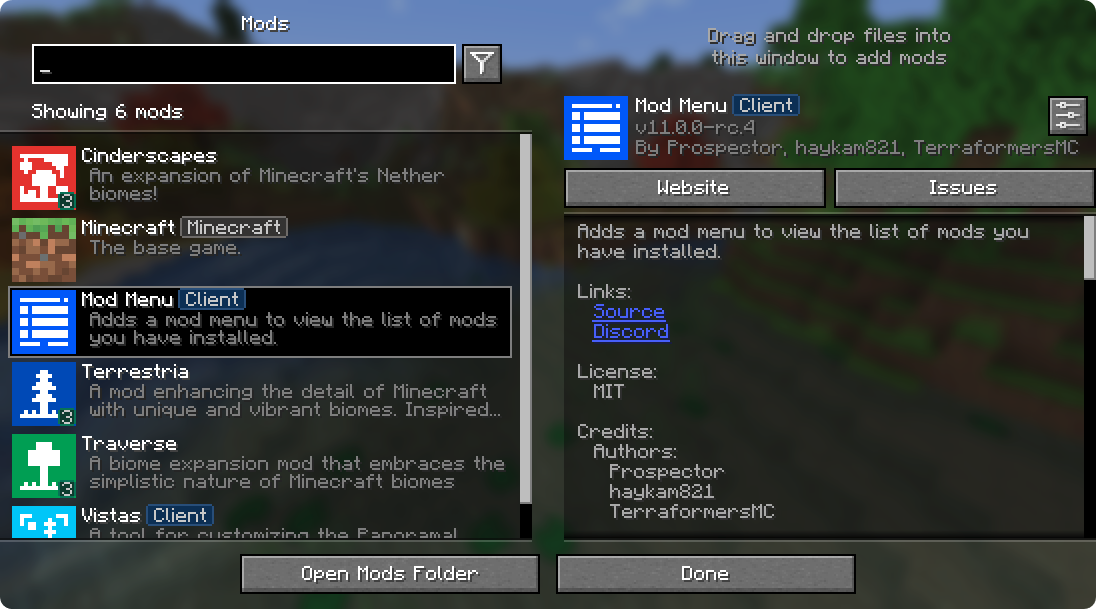
Mod Menu lets you view the mods you have installed and, if supported by the mod, enables quick and easy access to the mod's config screens.
Mod Menu also supports some more advanced features, such as translatable mod names and descriptions, support for QuickText formatting in mod descriptions thanks to Patbox's Text Placeholder API, filters library mods out from regular mods, a mod update checker for mods hosted on Modrinth or that provide their own update sources, and deep configuration for all the features we provide.

Supported Platforms
Mod Menu is currently available for Fabric or Quilt on Minecraft: Java Edition 1.14 or newer.

Developers
Mod Menu includes a number of APIs for developers to improve how their mod appears in Mod Menu. These come in the form of language keys, JSON metadata, and even a Java API.
Translation API
You can translate your mod's name, summary, and description all without touching any Java code. Simply add translation keys in the supported format to any language you'd like.
Translation API Documentation
Here's an example of Mod Menu's translations into Pirate Speak. To create your own, simply replace modmenu at the end (NOT the one in the beginning) of the translation key with your own mod ID, for example modmenu.descriptionTranslation.traverse.
enpt.json
"modmenu.nameTranslation.modmenu": "Menu o' mods!", "modmenu.descriptionTranslation.modmenu": "Menu o' mods ye installed matey!", "modmenu.summaryTranslation.modmenu": "Menu o' mods ye installed matey!"
The summary translation is redundant here and does not need to be included because it's the same as the description, but it was included to show that you may translate the summary (a short, one-sentence description of the mod) separately from the description, even in English!
Fabric Metadata API
There's a number of things you can add just with metadata in your fabric.mod.json.
All of these are added to a custom block in your fabric.mod.json for Mod Menu's metadata. Here's an example usage of many of the features this API provides:
fabric.mod.json
{ ... "custom": { "modmenu": { "links": { "modmenu.discord": "https://discord.gg/jEGF5fb" }, "badges": [ "library", "deprecated" ], "parent": { "id": "example-api", "name": "Example API", "description": "Modular example library", "icon": "assets/example-api-module-v1/parenticon.png", "badges": [ "library" ] }, "updatechecker": true } } }
Fabric Metadata API Documentation
Badges ("badges": [ ])
While the Client badge is added automatically to mods set as client-side only (set "environment": "client" in fabric.mod.json to do this.), other badges such as the Library and Deprecated badges require definition here.
Supported values:
- library - should be assigned to mods that are purely dependencies for other mods that should not be shown to the user by default unless they toggle them on.
- deprecated - should be assigned to mods that exist purely for legacy reasons, such as an old API module or such.
Any others will be ignored, and Mod Menu does not support adding your own badges. You may open an issue here if you have a compelling use case for a new badge.
Links ("links": { })
The links object allows mod authors to add custom hyperlinks to the end of their description. If you specify a sources contact in the official fabric.mod.json metadata, it will also be included in the links section.
Any key in the links object will be included in the links section, with the key being used as a translation key. For example, this:
fabric.mod.json
"custom": { "modmenu": { "links": { "modmenu.discord": "https://discord.gg/jEGF5fb" } } }
will show as a link with the text "Discord", since "Discord" is the English translation of "modmenu.discord" provided by Mod Menu.
Mod Menu provides several default translations that can be used for links. A full list can be seen in Mod Menu's language file here. All default link translation keys take the form modmenu..
You can also provide your own translations if you would like to add custom links. Make sure to use your own namespace (as opposed to modmenu) for any custom keys.
Parents ("parent": "modid" or { })
Parents are used to display a mod as a child of another one. This is meant to be used for mods divided into different modules. The following element in a fabric.mod.json will define the mod as a child of the mod 'flamingo':
fabric.mod.json
"custom": { "modmenu": { "parent": "flamingo" } }
However, if you want to group mods under a parent, but the parent isn't an actual mod, you can do that too. In the example below, a mod is defining metadata for a parent. Make sure that this metadata is included in all of the children that use the fake/dummy parent. This can also be used as a fallback for an optional parent, it will be replace by the mod's real metadata if present.
fabric.mod.json
"custom": { "modmenu": { "parent": { "id": "this-mod-isnt-real", "name": "Fake Mod", "description": "Do cool stuff with this fake mod", "icon": "assets/real-mod/fake-mod-icon.png", "badges": [ "library" ] } } }
Dummy parent mods only support the following metadata:
- id (String)
- name (String)
- description (String)
- icon (String)
- badges (Array of Strings)
Disable update checker ("updatechecker": false)
By default, Mod Menu's update checker will use the hash of your mod's jar to lookup the latest version on Modrinth. If it finds a matching project, it will check for the latest version that supports your mod loader and Minecraft version, and if it has a different hash from your existing file, it will prompt the user that there is an update available.
You can disable the update checker by setting updatechecker to false in your Mod Menu metadata like so:
fabric.mod.json
"custom": { "modmenu": { "updatechecker": false } }
Quilt Metadata API
Since Mod Menu supports Quilt as well, the same APIs in the Fabric Metadata API section are also available for Quilt mods, but the format for custom metadata is slightly different.
Instead of a "modmenu" block inside of a "custom" block, you put the "modmenu" block as an element in the root object. So it should look like:
quilt.mod.json
{ ... "modmenu": { // Here's where your links, badges, etc. stuff goes } }
Java API
To use the Java API, you'll need to add Mod Menu as a compile-time dependency in your gradle project. This won't make your mod require Mod Menu, but it'll be present in your environment for you to test with.
build.gradle
// Add the Terraformers maven repo to your repositories block repositories { maven { name = "Terraformers" url = "https://maven.terraformersmc.com/" } }
// Add Mod Menu as a dependency in your environment dependencies { // Prior to Minecraft 26.x, use "modImplementation" instead implementation("com.terraformersmc:modmenu:${project.modmenuversion}") }
Then, define the version of Mod Menu you're using in your gradle.properties. You can get the latest version number here, but you may need a different version if you're not using the latest Minecraft version. See the versions page for a full list of versions.
gradle.properties
modmenuversion=VERSIONNUMBERHERE
If you don't want it in your environment for testing but still want to compile against Mod Menu for using the Java API, you can use modCompileOnly instead of modImplementation (this will work even if Mod Menu is not updated to the version of Minecraft you're running).
Java API Documentation
Getting Started
To use the API, implement the ModMenuApi interface on a class and add that as an entry point of type "modmenu" in your fabric.mod.json like this:
fabric.mod.json
"entrypoints": { "modmenu": [ "com.example.mod.ExampleModMenuApiImpl" ] }
Mod Config Screens
Mods can provide a Screen factory to provide a custom config screen to open with the config button. Implement the getModConfigScreenFactory method in your API implementation to do this.
The intended use case for this is for mods to provide their own config screens. The mod id of the config screen is automagically determined by the source mod container that the entrypoint originated from.
Provided Config Screens
Mods can provide Screen factories to provide a custom config screens to open with the config buttons for other mods as well. Implement the getProvidedConfigScreenFactories method in your API implementation for this.
The intended use case for this is for a mod like Cloth Config to provide config screens for mods that use its API.
Modpack Badges
Mods can give other mods the Modpack badge by implementing the attachModpackBadges method, such as through the following:
@Override public void attachModpackBadges(Consumer consumer) { consumer.accept("modmenu"); // Indicates that 'modmenu' is part of the modpack }
Note that 'internal' mods such as Minecraft itself and the mod loader cannot be given the modpack badge, as they are not distributed within a typical modpack.
Static Helper Methods
ModMenuApi also offers a few helper methods for mods that want to work with Mod Menu better, like making their own Mods buttons.
Creating a Mods screen instance
You can call this method to get an instance of the Mods screen:
Screen createModsScreen(Screen previous)
Creating a Mods button Text
You can call this method to get the Text that would be displayed on a Mod Menu Mods button:
Text createModsButtonText()
Installation von Mod Menu
With Millida Launcher
Install Millida Launcher
The launcher is free: download it at millida.net/launcher and sign in with any nickname.
Click “Install” on this page
The launcher opens and installs the mod for Minecraft 1.16–26.3 on Fabric or Quilt automatically, together with its dependencies: Fabric API, Text Placeholder API.
Launch the game
A profile with it appears in the launcher: click “Play”.
Manually
Install Fabric or Quilt
The loader must match the game version of the mod file, for example Minecraft 26.3. After installing it, a separate profile appears in your launcher.
Download the file for your version
In the version list above, pick the file modmenu-21.0.0.jar (837 KB) for your game version and loader.
Put it in the mods folder
The folder is inside .minecraft (Windows: %appdata%\.minecraft\mods). If it does not exist, create it. Required dependencies go there too: Fabric API, Text Placeholder API.
Launch the loader profile
Open “Mods” in the main menu: Mod Menu should be in the list.
Mod Menu works on the player’s side only: there is no need to install it on a server.
Versionen
Mit Abhängigkeiten
| Minecraft | Loader | Datei | Datum | Aktionen |
|---|---|---|---|---|
| 26.2 | Fabric, Quilt | 26.2602 KB 1.015 | ||
| 26.1.2 | Fabric, Quilt | 26.1.2840 KB 244 | ||
| 1.21.11 | Fabric, Quilt | 1.21.11938 KB 2.982 | ||
| 1.21.1 | Fabric, Quilt | 1.21.1953 KB 339 | ||
| 26.3 | Fabric, Quilt | 26.3837 KB 1.612 | ||
| 26.3 | Fabric, Quilt | 26.3837 KB | ||
| 26.2 | Fabric, Quilt | 26.2602 KB | ||
| 26.1.2 | Fabric, Quilt | 26.1.2840 KB |
Was zum Ausführen nötig ist
- Fabric APIerforderlich
- Text Placeholder APIerforderlich
Bewertungen
Bewerten Sie Mod Menu als Erster