Minecraft 1.7.4 کے لیے SideBar پلگ ان
آپ کو سائیڈبار/اسکور بورڈ ترتیب دینے کی اجازت دیتا ہے۔
SideBar پلگ ان کے بارے میں
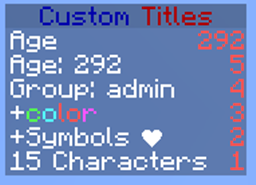
~ This plugin aims to give you complete control of the scoreboard/sidebar.
- More than 100 variables
- Color and UTF-8 symbol support: ❤
(see here to convert UTF-8 to ascii for yml)
- Dynamically updating sidebar
- Set a sidebar to appear in certain worlds
- Have per group sidebars
- Optionally allow users to choose what sidebar to use
- Use commands to manage a player's sidebar
- Use in-built scripting to change user's sidebar or add new variables
- Group Specific Sidebar Permissions. Add & remove permissions for certain sidebars at your command
- No database required

Click here for a list of {variables}
The installation process is easy. Simply put this plugin, as well as Vault into your plugin directory and restart your server.

Dependencies
This plugin requires Vault - Click here to download it if you don't already have it.
Several files/folders are created upon installation.
config.yml
Setting Description Default Value
version The plugin version (do not change) version dependent
scripting.directory The location to use for custom scripts scripts
scripting.sidebar-directory The location of the sidebar files scoreboards
multiworld.<world>.sidebar The sidebar to use for that world (set to false for no scoreboard) default
sidebar.autoupdate.whitelist A list of placeholders which should update (add your own here) some big list
sidebar.auto-update.enabled Whether the scoreboards should update, or simply be static true
sidebar.interval-ticks How often to update a scoreboard (20ticks=1s) 20
sidebar.async Do not mess with this unless you know what you are doing false
language What yml file to use for the language messages english
compatability-mode Whether other scoreboard plugins should be allowed to disable this scoreboard true
english.yml
- Not implemented yet :(
scripts folder
You will find two scripts already here. To use the script "example.yml" simply put "{example}" in your scoreboard file To use the script "test.js" simply put "{js:test.js}" in your scoreboard file To add your own script, create a new .yml or .js file in the scripts directory For outdated information on scripting, click here. Click here for a list of {variables}
scoreboards folder
Setting Description Examples
title The title (appearance) of the scoreboard e.g. "Ranks"
permission The permission node required to use this scoreboard e.g. sidebar.use.ranks
description A short description of the scoreboard e.g. "Cost of different game ranks"
keys Keys are the values on the left of the scoreboard They can be anything less than 16 characters You can have placeholders in a key e.g. Money: ${money} or just "Money:"
values This is the right side of the scoreboard Scoreboard elements are automatically sorted in descending order If you want something on top, it needs a large value You can only put numbers here or something that resolves to a number e.g. 5 {money}
Adding your first scoreboard:
1. Navigate to the scoreboards folder
When the plugin loads for the first time, it will create a folder (in your plugins directory) called SideBar
- Within here you will find the scoreboards folder (as well as the config.yml)
2. Create a new yml file
An example scoreboard (example.yml) should also be present. It is recommended that you copy this file and base your new scoreboard off this.
Here is the example scoreboard file opened in NP++:
3. Changing the title
Set the title key to whatever you want the label to be for the scoreboard.
- e.g. title: "Stats:"
4. Add a permission node
Set the permission key to the permission node required for a user to use that scoreboard.
- e.g. permission: sidebar.use.myfirstscoreboard
5. Add a description
Set the description key to a brief explanation of the purpose of the scoreboard so that players will know what each scoreboard does. (Useful if you want to allow users to set their own scoreboard using commands)
6. Add scores
The scores which will be visible on the scoreboard are under keys and values
Some things to note about scoreboard behavior: - Each score is comprised of a String (some text) and an Integer (a whole number)
- Currently the length of the String cannot resolve to be longer than 15 characters.
- Scores are automatically sorted in descending order (client side)
(The score with the highest Integer value will always be on top)
Things you can use for "keys":
- Plain text e.g. Hello
- Color codes e.g. &6Hello
- Variables e.g. Hello {player}
- Unicode symbols e.g. \u2764 (ASCII equivilent of ❤)
See here for a list of variables See here to convert UNICODE symbols to ASCII
Things you can use for "values":
- Whole numbers e.g. 6
- Variables e.g. {age}
- Expressions e.g. 15*6+4
(You may have variables within an expression) (The result must evaluate to a whole number however)
6. Add the scoreboard to the config
Open the config.yml For each map there will be a sidebar option. - Set the sidebar/scoreboard for each world using this option. - Set sidebar to the name (not including .yml) of the scoreboard file.
- e.g. If your scoreboard file is called custom.yml you may have sidebar: custom
7. Add your own dynamic variables
See here for help on creating your own variables
Command Description Permission
/sidebar help Shows a list of commands none
/sidebar set <sidebar> Set your sidebar sidebar.set +node for specific scoreboard
/sidebar set <sidebar> <player> Set someone's sidebar sidebar.set.other
/sidebar list Shows a list of scoreboards sidebar.list
/sidebar reload Reloads the configuration sidebar.reload
[TODO]
Tell me if you want a feature added
- Sidebar setting for groups/permissions (Vault Required for Group Permissions, if vault is not found it will revert to bukkit based permissions)
- World grouping
- Command to hide sidebar
- Empty sidebar will not display
- Priority option for group/permission/world sidebars.
- Command to preview a sidebar (in chat)
- Command to browse placeholders
- Command to set variables
- Command to view a player's current sidebar
- Command to view a world's default sidebar
Latest build can be found here:
Repository Status Extra Info
Subproject (Click image for repository: Sub) Not Stable (Mostly alpha/beta builds)
Masterproject (Click image for repository: Master) Stable (Stable Beta/Release builds)
SideBar کیسے انسٹال کریں
A server on Paper or Spigot
The plugin runs on the server core for Minecraft 1.6.4–1.7.4; players do not need to install anything.
File goes into the plugins folder
Download the file SideBar.jar (19 KB) and put it into the server’s plugins folder.
Restart the server
On startup the plugin creates its own settings folder in plugins.
Use the “To server” button
On Millida Hosting, the button at the top of the page uploads the file to your server and restarts it for you.
Minecraft 1.7.4 runs on Java 8: with a different Java version the game may close right after launch.
ورژنز
ڈیپنڈنسیز کے ساتھ
| Minecraft | لوڈر | فائل | تاریخ | اقدامات |
|---|---|---|---|---|
| — | — | Sidebar v0.1.3203 KB | ||
| 1.7.2 | — | v0.0.118.8 KB |
عمومی سوالات
Which Minecraft versions does SideBar work on?
There are files for 1.7.4, 1.7.2, 1.6.4. The newest is 1.7.4.
Do players need to install SideBar?
No, the plugin goes only on the server, into the plugins folder: players do not need to download anything.
Which Java does SideBar need?
Minecraft 1.7.4 runs on Java 8. If the game closes right after launch, the usual cause is the wrong Java version in the profile settings.
How do I download SideBar?
With Millida Launcher: it installs SideBar into a modpack by itself, for the right game version and loader. The launcher is free.
ریویوز
SideBar کو ریٹ کرنے والے پہلے شخص بنیں