Utility HUD Resurs pak za Minecraft 1.21, 26.30
Ovaj paket je nadgradnja inventara koja dodaje neke QoL funkcije HUD-u koje inače nisu dostupne bez dodataka.
Utility HUD (PC & Mobile)
It's an inventory overlay pack that adds some QoL features (PvP focused) in HUD. This type of packs were previously only possible on touch devices. But now it's possible thanks to T1M0THY's Discovery
It now works on both PC and Mobile!
Features
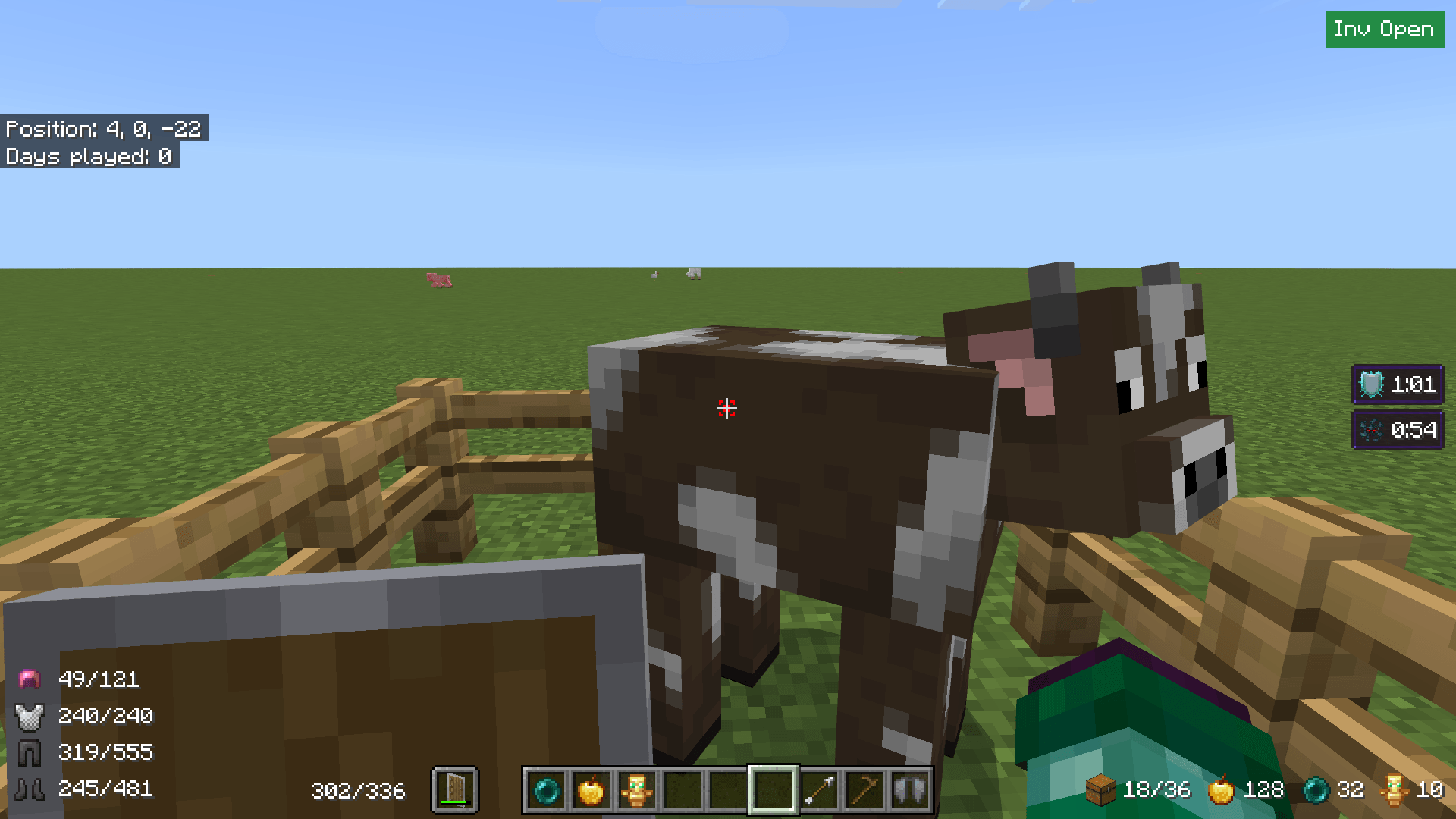
- Armor Durability
- Offhand Slot
- Mainhand Item Durability & in Inventory
- Potion Effects Overlay
- Fast Offhand Swap
- Fast Totem
- Item Counter (Free Slots, Golden Apple, Ender Pearls, Totems)
- Attack Crosshair
Usage (PC)
There's some of key combinations to use the features mentioned above.
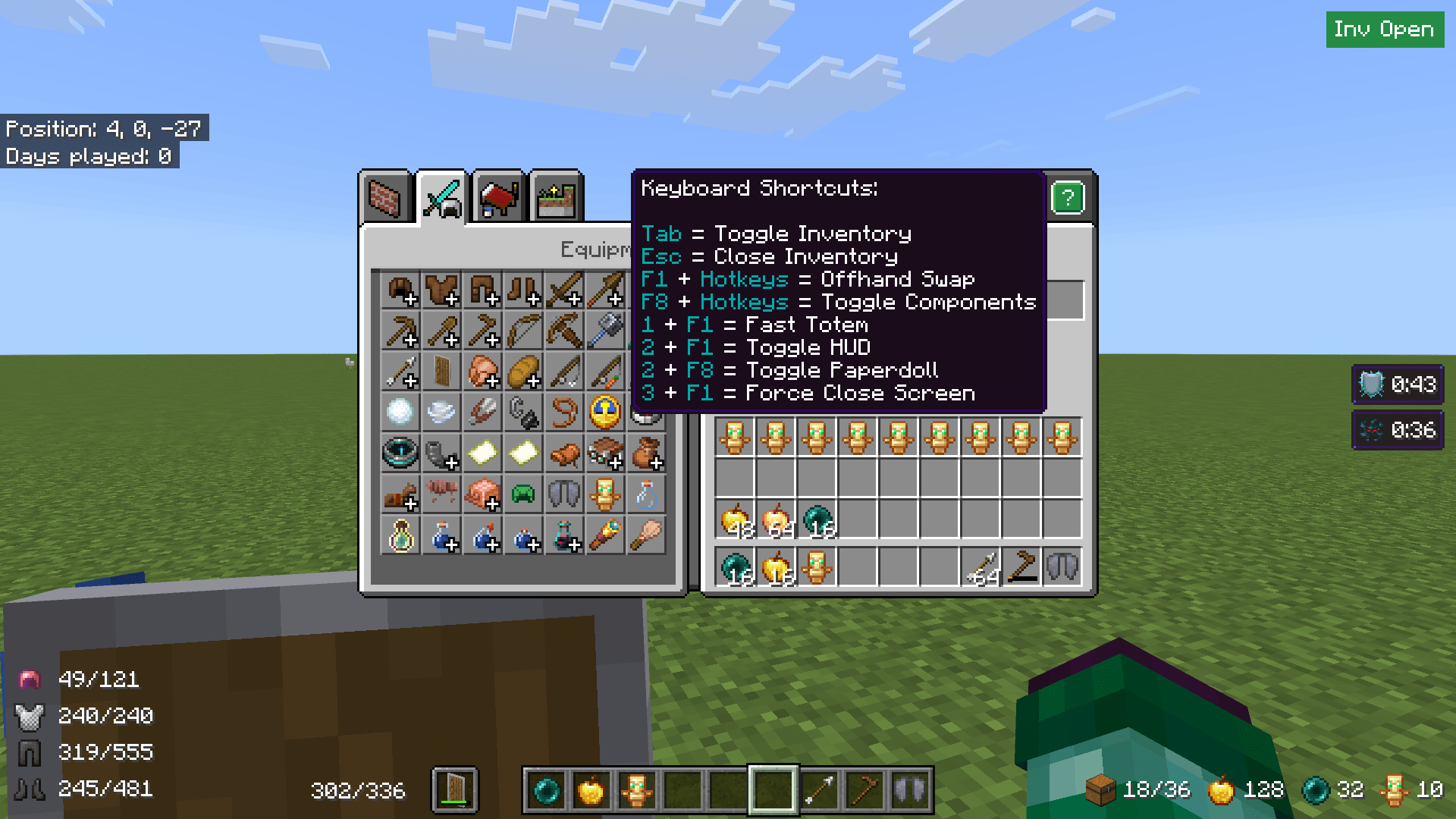
- After joining the world press E to open inventory and all teh features will be active. Note: If you have potion effects active, press Z first to display Potion Effects Overlay and then press E. Make sure your Inventory is closed before you do this (To avoid unncessary Issues)
- To show/hide Inventory press Tab key
- To close Inventory press Esc key when it's visible. Note: You'll need to close the inventory before you open containers such as Chests, Villager Trades etc.
- F1+Hotkeys (1 - 9) to swap item in offhand. This will swap compatible items from that with the Offhand Item
- 1+F1 to fast equip totem from Inventory or Hotbar
- F8+Hotkeys (1 - 5) to show/hide features from this pack. You'll be shown a menu displaying which key to press for which feature.

- As F1 and F8 are normally used for Hiding HUD and Toggling Paperdoll, in order to do those now you have to press 2+F1 and 2+F8 respectively.
- Extra: If somehow your cursor goes out of focus then you can fix it by simply pressing Esc. To forcefully close potion overlay or Inventory screen press 3+F1
Usage (Mobile)
- You have to use Classic UI for this to work. Pocket UI isn't supported.
- First open inventory and you'll see a button appear on top of the inventory button. Clicking on it will show the inventory. And to hide it, click on the close button beside help button. Note: If you have effects then open the effects screen first.
- To close Inventory click on the close button on top right of the screen. Note: You'll need to close the inventory before you open containers such as Chests, Villager Trades etc.
- To swap items between hotbar and offhand, first click on the swap button and then click on the item you want to swap.
- To equip totems fast. Use the totem button. You can drag it around to your desired position. Note that it will reset it's position everytime you reload the world. To prevent that modify the config options.
- In order to temporarily solve a bug with crafting output, a new button was added that let's you craft items. But it will use all resources currently in the crafting grid. That's why there are two modes. One let's you put only one item at a time in the crafting grid and the other let's you put items normally. Note: This bug only happens in inventory screen. Crafting table works properly.
Config
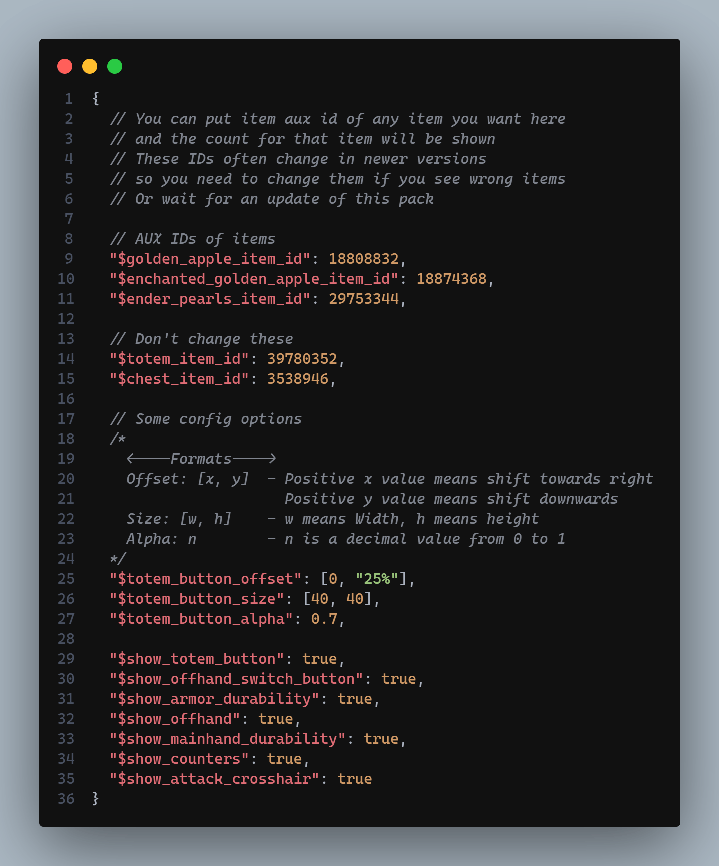
You can find some options that you can modify about this pack in _global_variables.json file inside ui folder. There are explanation about the things you can modify.
Note: Golden Apple and Enchanted Golden Apple counts are combined.
Subpacks
- Default - With all the features
- Without Counters - If you face any lag on HUD Screen, use this subpack to get rid of the counters
MCPEDL Link: Utility HUD
- You can modify the pack for your personal use only.
- You cannot use any code without permission or reupload the pack.
- If you find any bugs or have any suggestions for new features, feel free to contact me on Discord or join my Server!
Kako instalirati Utility HUD
With Millida Launcher
Install Millida Launcher
The launcher is free: download it at millida.net/launcher and sign in with any nickname.
Click “Install” on this page
The launcher opens and installs the resource pack for Minecraft 1.21–26.30 automatically.
Launch the game
A profile with it appears in the launcher: click “Play”.
Manually
Download the archive
Pick the file Utility HUD V-1.5.mcpack (29 KB) for your game version. No need to unpack it.
Put it in the resourcepacks folder
The easiest way: “Options”, then “Resource Packs”, then “Open Pack Folder”, and drag the archive there.
Enable the pack
In the same window, move the pack to the right-hand “Selected” column and click “Done”.
Verzije
Sa zavisnostima
| Minecraft | Loader | Fajl | Datum | Akcije |
|---|---|---|---|---|
| 1.21 | — | Utility HUD V-1.529 KB 10 |
Česta pitanja
Which Minecraft versions does Utility HUD work on?
There are files for 26.30, 26.20, 26.10, 26.3, 26.0, 1.21. The newest is 26.30.
Where can I download Utility HUD safely?
On this page: the file Utility HUD V-1.5.mcpack (29 KB) is stored on Millida’s server, with no link shorteners. SHA-1 checksum: 4bd7c74d2aa2b04eeb7bd071bb2d97402c668248.
Recenzije
Budi prvi koji će oceniti Utility HUD