 Forge
 NeoForge
Tetra मॉड के बारे में

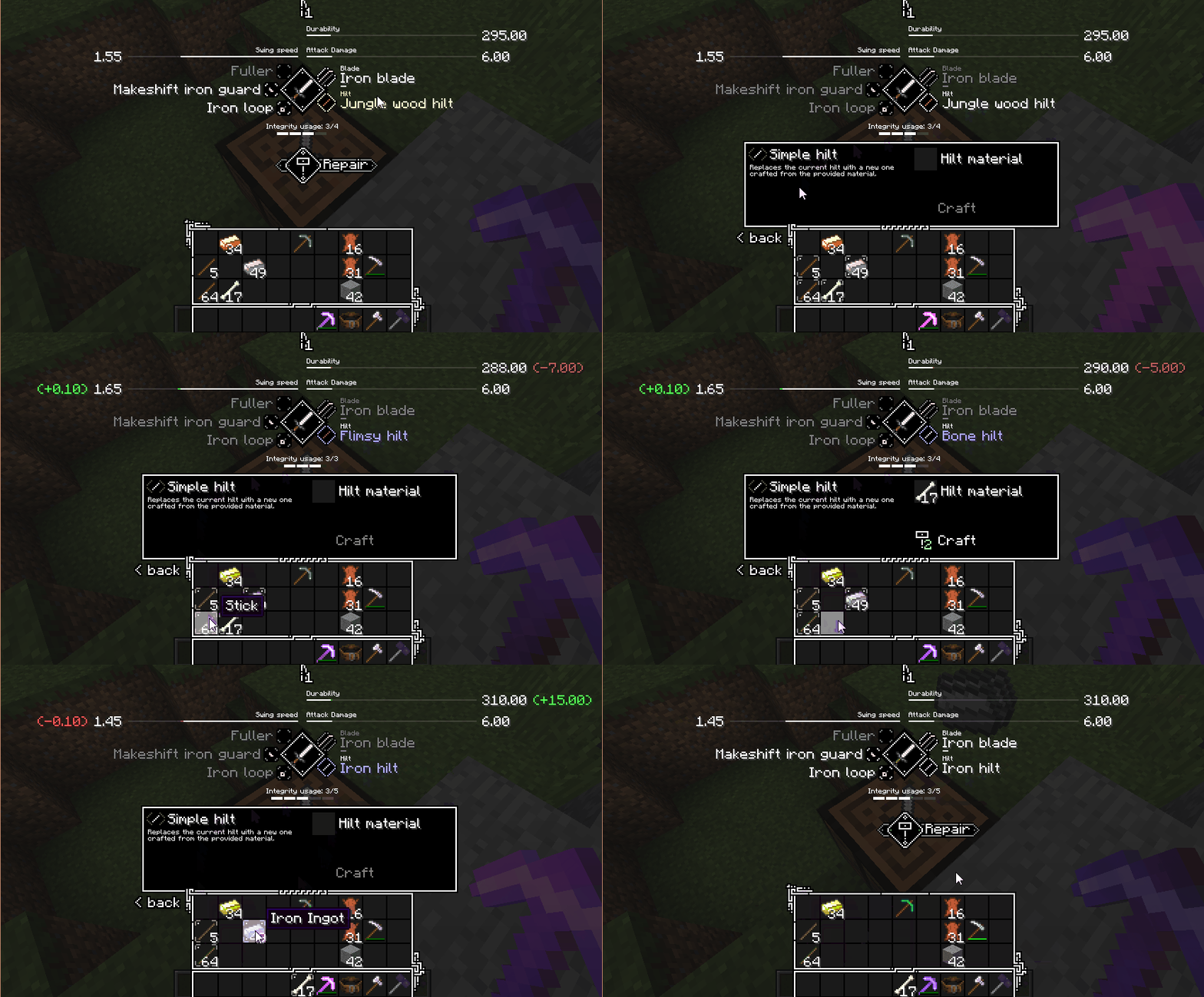
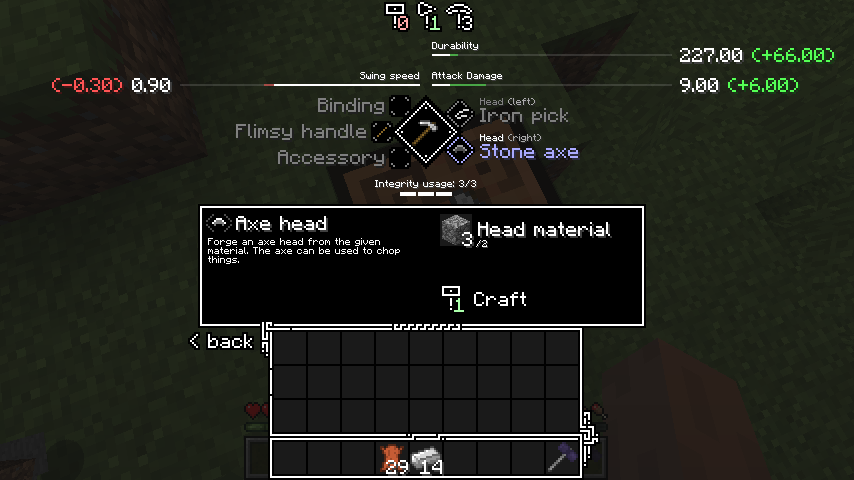
Tetra एक Minecraft मॉड है जो खिलाड़ियों को औज़ार, हथियार और अन्य प्रकार के उपकरण संशोधित और बेहतर करने की सुविधा देता है। संशोधित आइटम इस्तेमाल के साथ-साथ समय के साथ बेहतर हो सकते हैं। शक्तिशाली टूल पार्ट्स और स्कीमैटिक्स दुनिया में प्राचीन खंडहरों को खंगालकर या व्यापार और वस्तु-विनिमय के ज़रिए पाए जा सकते हैं।
Tetra में दो advancement टैब हैं जो उपलब्ध अधिकांश सामग्री को कवर करते हैं, और holosphere मॉड्यूल, सुधारों और सामग्रियों के आँकड़ों का अवलोकन प्रदान करता है।
Tetra के बारे में अधिक जानकारी Tetra वेबसाइट पर मिल सकती है
Tetra एक यूटिलिटी लाइब्रेरी (mutil) का उपयोग करता है, अगर आप curseforge इंस्टॉलर का उपयोग नहीं कर रहे हैं तो आपको इसे मैन्युअल रूप से इंस्टॉल करना होगा।
📝 शुरुआत कैसे करें
- दो स्टिक और दो प्लैंक से एक मैलेट बनाएँ
- एक वनीला क्राफ्टिंग टेबल बनाएँ और रखें
- मैलेट से टेबल पर राइट क्लिक करके उसे वर्कबेंच में अपग्रेड करें
- एक वनीला हथियार, औज़ार, शील्ड या बो बनाएँ और उसे वर्कबेंच में रखें
आगे कैसे बढ़ना है यह जानने के लिए advancements विंडो देखें
🔌 मॉड संगतता
Tetra में डिफ़ॉल्ट रूप से curios संगतता है (टूलबेल्ट के लिए), अधिक मॉड संगतता के लिए आप इन्हें देख सकते हैं:
- tetracelium
- संगतता सूची
🔗 लिंक
- Discord
- Patreon
- तकनीकी विकी
📜 लाइसेंसिंग और उपयोग
जब तक इसे modrinth या curseforge के ज़रिए वितरित किया जाता है, इसे मॉडपैक या संकलनों में उपयोग करने में संकोच न करें। डेटापैक (या kubejs या समान) के साथ सामग्री संशोधित करने या जोड़ने में संकोच न करें, addons और मॉड एकीकरण के संबंध में उपयोग की अधिक जानकारी के लिए github repo देखें।
Tetra कैसे इंस्टॉल करें
With Millida Launcher
Install Millida Launcher
The launcher is free: download it at millida.net/launcher and sign in with any nickname.
Click “Install” on this page
The launcher opens and installs the mod for Minecraft 1.12.2–1.20.1 on Forge or NeoForge automatically.
Launch the game
A profile with it appears in the launcher: click “Play”.
Manually
Install Forge or NeoForge
The loader must match the game version of the mod file, for example Minecraft 1.20.1. After installing it, a separate profile appears in your launcher.
Download the file for your version
In the version list above, pick the file tetra-1.20.1-6.17.0.jar (3.9 MB) for your game version and loader.
Put it in the mods folder
The folder is inside .minecraft (Windows: %appdata%\.minecraft\mods). If it does not exist, create it.
Launch the loader profile
Open “Mods” in the main menu: Tetra should be in the list.
Minecraft 1.20.1 runs on Java 17: with a different Java version the game may close right after launch.
वर्ज़न
डिपेंडेंसी के साथ
| Minecraft | लोडर | फ़ाइल | तारीख़ | क्रियाएँ |
|---|---|---|---|---|
| 1.20.1 | Forge, NeoForge | 6.17.03.9 MB 5 | ||
| 1.20.1 | NeoForge, Forge | tetra-1.20.1-6.0.0.jar3.3 MB | ||
| 1.19.2 | Forge | tetra-1.19.2-5.3.1.jar3.3 MB | ||
| 1.16.3 | — | tetra-1.16.5-3.9.2.jar2.6 MB 1 | ||
| 1.15.2 | — | tetra-1.15.2-2.18.0.jar2 MB | ||
| 1.12.2 | — | tetra-1.12.2-0.27.2.jar2.2 MB |
FAQ
Which Minecraft versions does Tetra work on?
There are files for 1.12.2–1.20.1, 8 versions in total. The newest is 1.20.1.
Is Tetra for Forge or Fabric?
There are files for Forge: 1.19.1–1.20.1 and for NeoForge: 1.20.1. There are no files for Fabric: a mod for another loader will not start.
Does Tetra need other mods?
The author lists no required dependencies: the Forge or NeoForge loader is enough.
Which Java does Tetra need?
Minecraft 1.20.1 runs on Java 17. If the game closes right after launch, the usual cause is the wrong Java version in the profile settings.
Where can I download Tetra safely?
On this page: the file tetra-1.20.1-6.17.0.jar (3.9 MB) is stored on Millida’s server, with no link shorteners. SHA-1 checksum: 8da82a8f2c289fb1e731134a6af891503f2d1a4a.
रिव्यू
Tetra को सबसे पहले रेट करें