
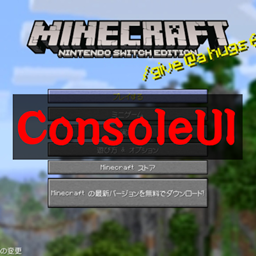
Minecraft Wii U Edition-style UI!
Have you ever played Minecraft Console Edition?
This resource pack changes the appearance of Minecraft Bedrock Edition to resemble the look of Console Edition (Wii U, PS3, PS4, Xbox 360, Xbox One)!
Before using! Settings you should change!
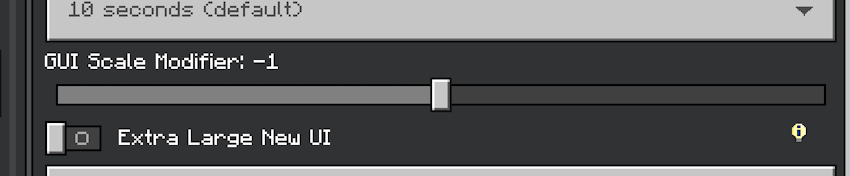
When using this resource pack, please lower the GUI zoom adjustment! If the GUI is too large, parts of the screen may be cut off, or text may overlap!
Compatible Screens
This resource pack gives the following screens a look similar to the console edition!
Start Screen
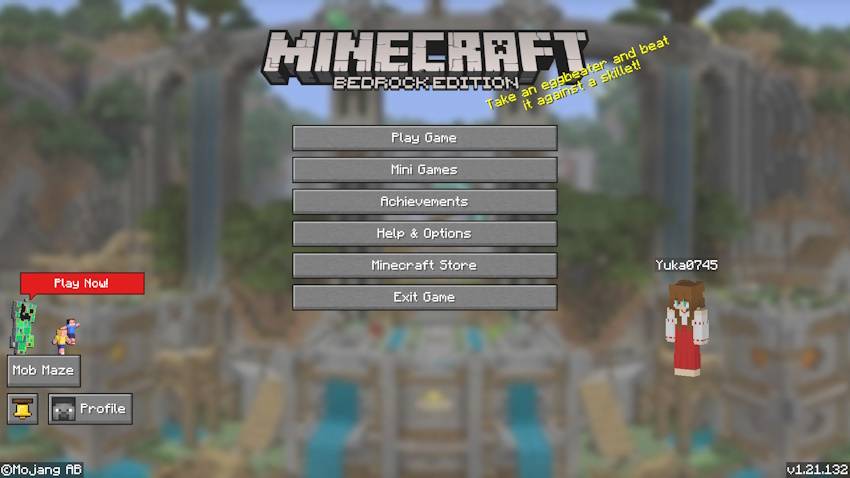
World Screen (※)
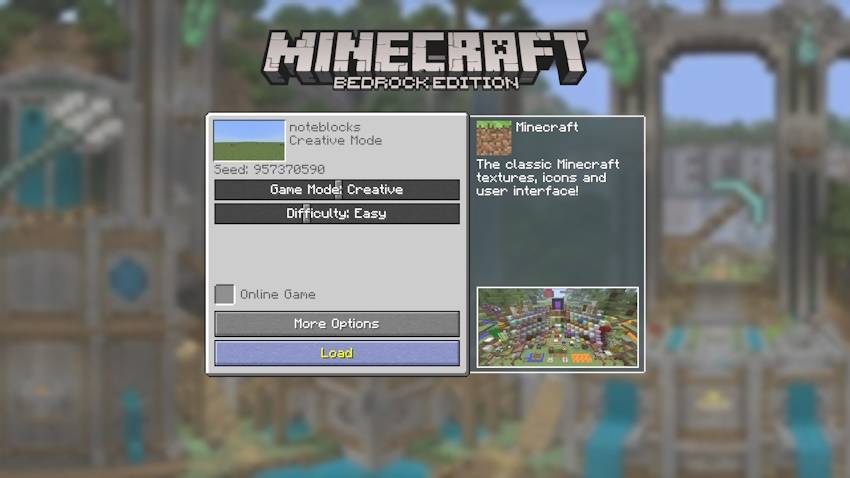
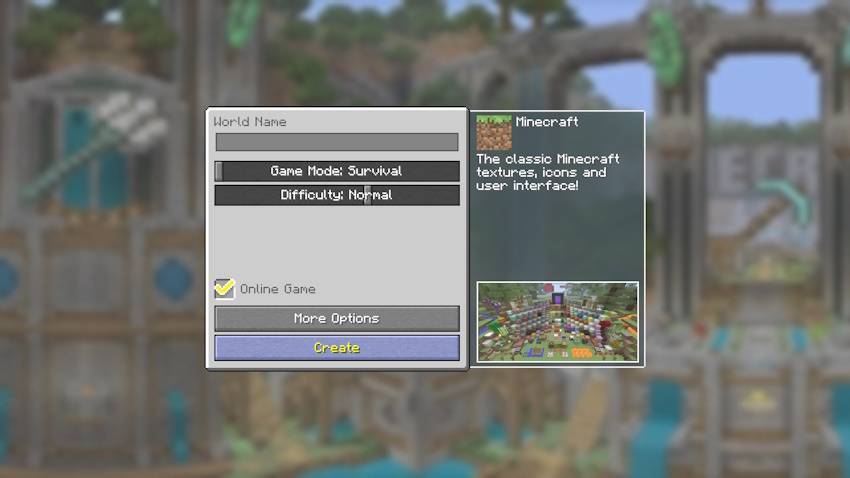
Create new world Screen (※)
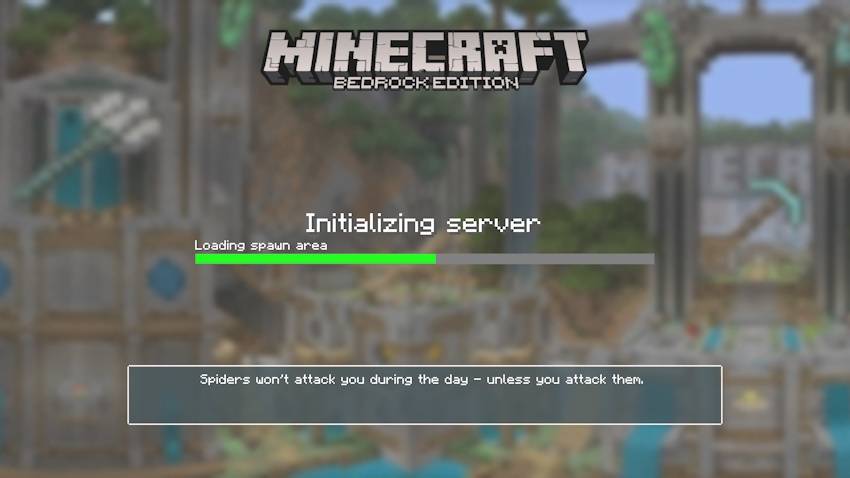
Progress Screen
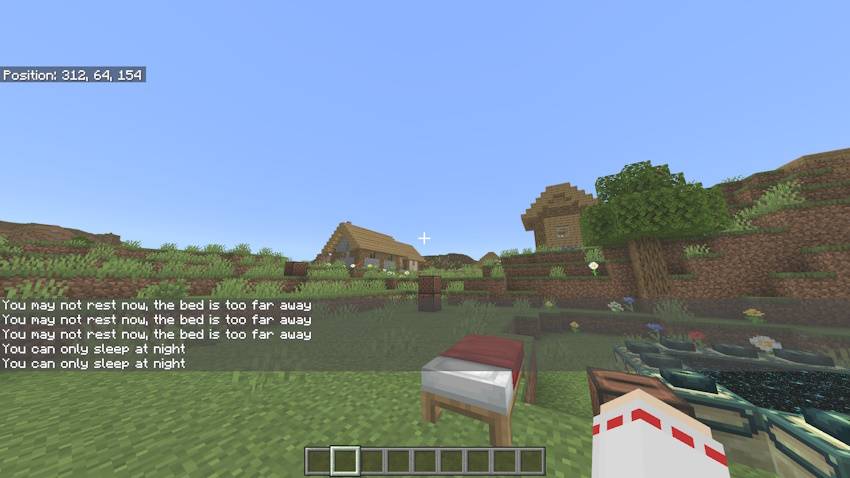
HUD
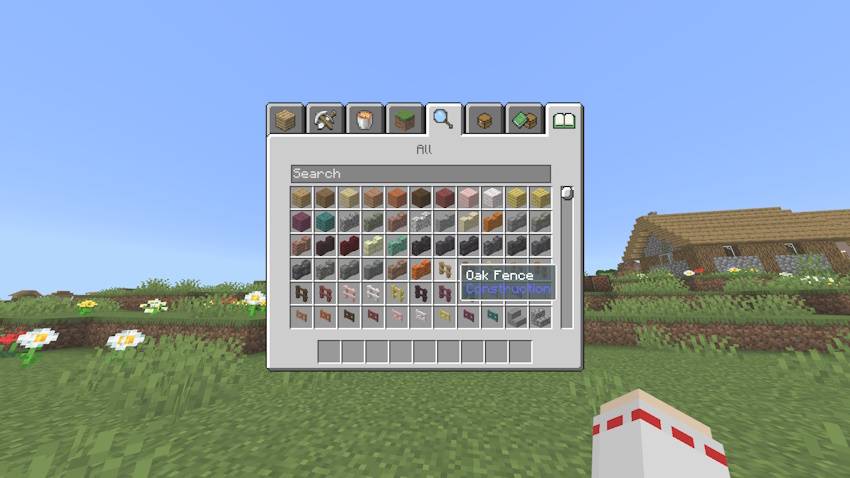
Inventory
Dimension Loading Screen
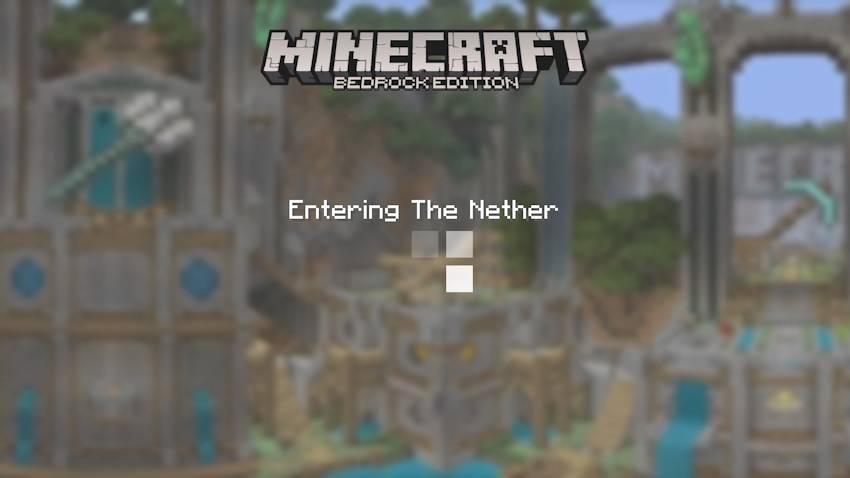
Pause Screen
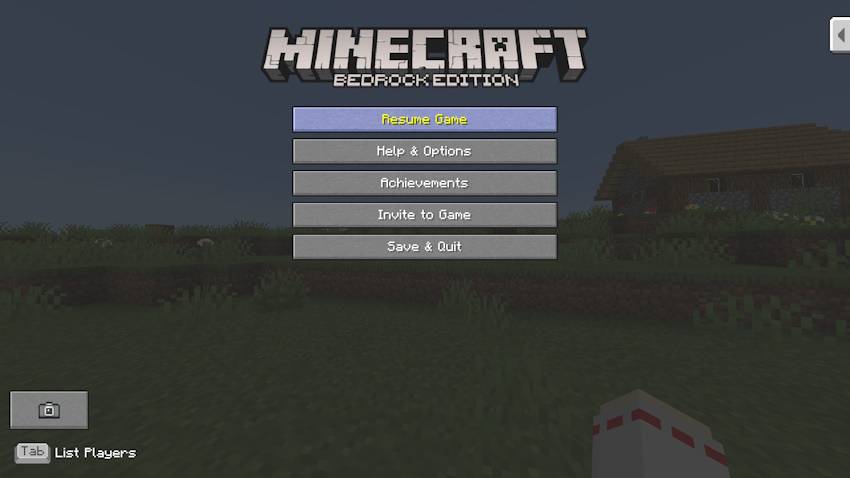
To display screens marked with (※), ForseCloseOreUI is required! ForseCloseOreUI is an external tool! Use at your own risk!
https://github.com/QYCottage/ForceCloseOreUI/releases
Others
- Items renamed on the Anvil will now appear orange!
- The hint text displayed when loading worlds will be the same as on Wii U! (English and Japanese only)
- Damage sounds, fall damage sounds, skeleton damage sounds, and Anvil usage sounds will now have a console-style feel!
Console-style gamma
You can turn on console-style gamma from this resource pack's settings screen!
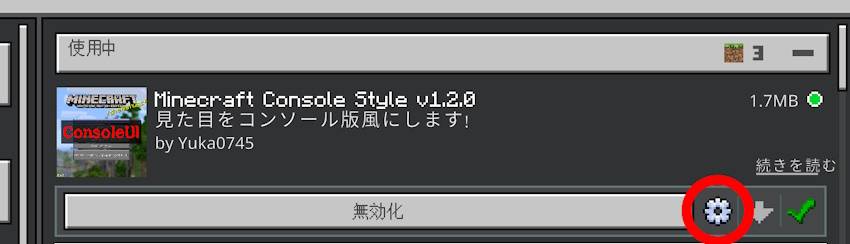
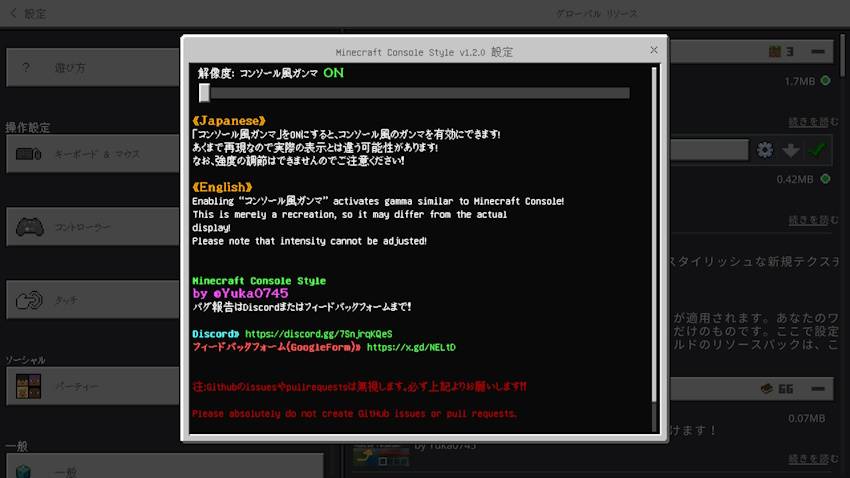
Turning "コンソール風ガンマ" ON makes the entire screen appear whitish! This is merely a reproduction, so it may differ from the actual display!
How to install Console Style
With Millida Launcher
Install Millida Launcher
The launcher is free: download it at millida.net/launcher and sign in with any nickname.
Click “Install” on this page
The launcher opens and installs the resource pack for Minecraft 1.21.130 automatically.
Launch the game
A profile with it appears in the launcher: click “Play”.
Manually
Download the archive
Pick the file MinecraftConsoleStyle_v1.2.0.mcpack (1.4 MB) for your game version. No need to unpack it.
Put it in the resourcepacks folder
The easiest way: “Options”, then “Resource Packs”, then “Open Pack Folder”, and drag the archive there.
Enable the pack
In the same window, move the pack to the right-hand “Selected” column and click “Done”.
Versions
With dependencies
| Minecraft | Loader | File | Date | Actions |
|---|---|---|---|---|
| 1.21.130 | — | MinecraftConsoleStyle_v1.2.0.mcpack1.4 MB |
Reviews
Be the first to rate Console Style


