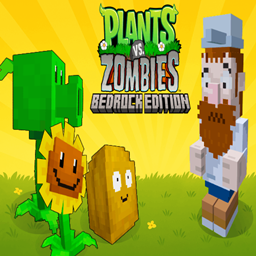
Plants vs Zombies Karte für Minecraft 1.21.111
Mach dich bereit, deine Pflanzen zu düngen! Erlebe das klassische Tower-Defense-Gameplay von Plants vs. Zombies, neu interpretiert in der Welt von Minecraft. Eine Meute vergnügter Zombies ist dabei, dein Zuhause zu überfallen, und deine einzige Verteidigung ist ein Arsenal an zombiebratenden Pflanzen.
Über die Plants vs Zombies-Map
Place your plants, collect falling Sun, and fight through waves of zombies across multiple levels. Each victory unlocks new, powerful plants to help you on your journey. With a variety of plants to master and increasingly challenging zombies to defeat, you'll have to think fast and plant faster to protect your lawn. Are you ready to defend your home from the zombie horde?
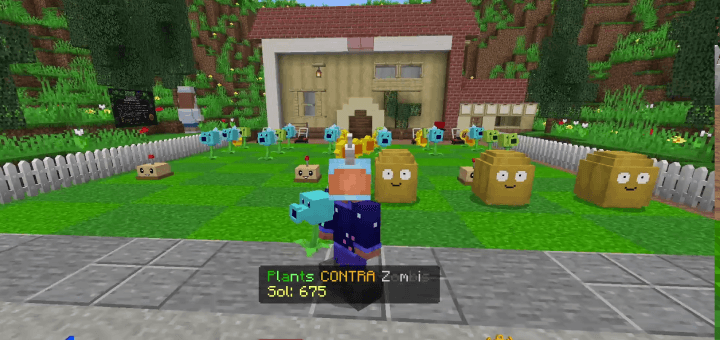
How to Play Guide
Welcome to Plants vs. Zombies in Minecraft! This guide will walk you through the basics of defending your lawn.
Getting Started
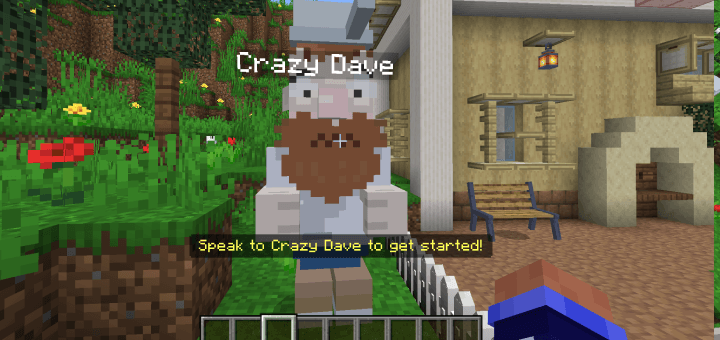
To begin your adventure, find Crazy Dave in the world. When you first join, a message will appear on your screen prompting you to speak with him. Simply interact with (or hit) Crazy Dave to open the main menu and start playing.
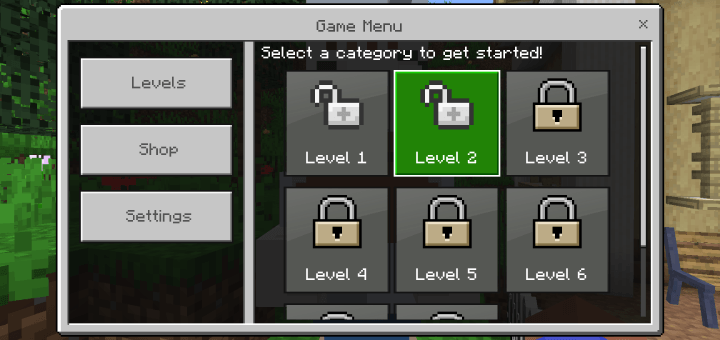
The Basics of Lawn Defense
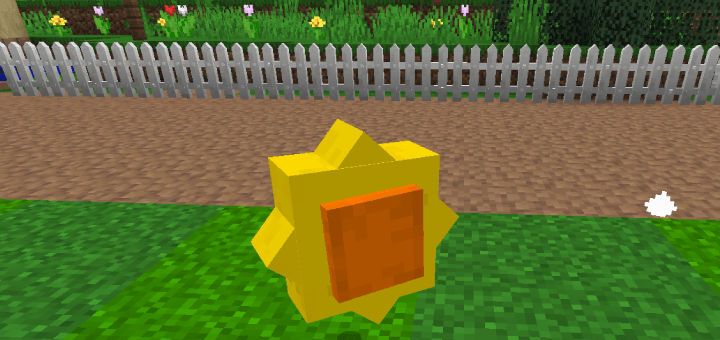
Sun: This is the most important resource in the game. Sun falls from the sky periodically, and you can also get it from Sunflowers. To collect it, simply walk up to it or look at it and swing your arm. Each Sun is worth 25 points.
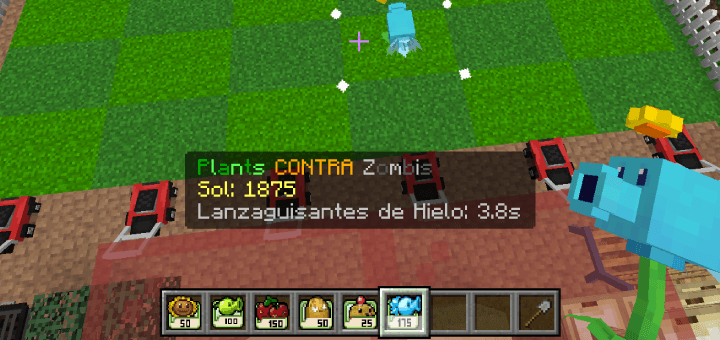
Planting: To plant, select a plant from your hotbar and use the item on a valid planting tile. A valid tile is a 3x2 area of grass. A particle outline will appear to show you where you can plant.
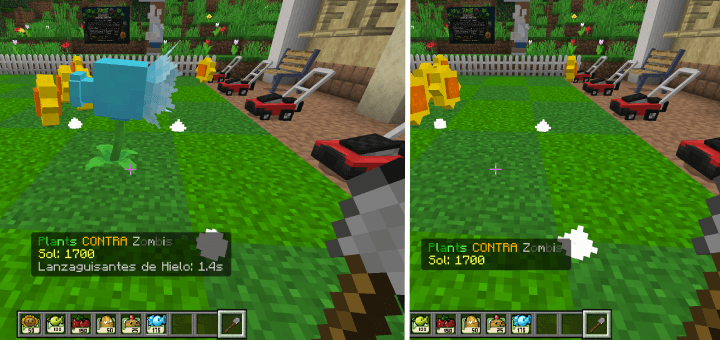
The Shovel: If you need to remove a plant, select the shovel from your hotbar and use it on the plant you wish to dig up.
The Plants
As you complete levels, you will unlock a variety of plants to help you fight the zombies.
Sunflower
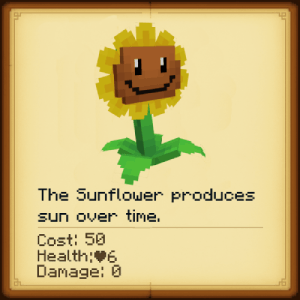
Cost: 50 Sun
Cooldown: 5 seconds
Function: Produces additional Sun for you to collect. An essential part of any defense!
Peashooter
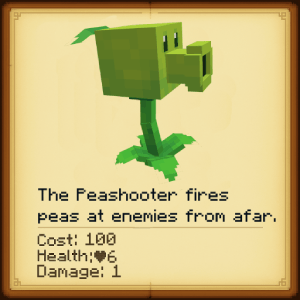
Cost: 100 Sun
Cooldown: 7.5 seconds
Function: Your first line of defense. The Peashooter shoots peas at zombies in its lane.
Cherry Bomb
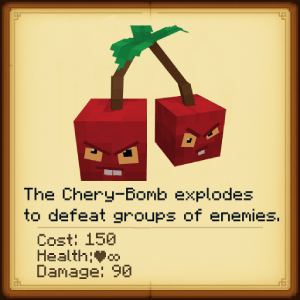
Cost: 150 Sun
Cooldown: 25 seconds
Function: When you need to clear a group of zombies in a hurry, the Cherry Bomb explodes, taking out all zombies in a small area.
Wall-nut
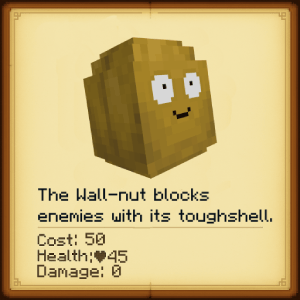
- Cost: 50 Sun
- Cooldown: 30 seconds
- Function: A tough defensive plant that can block zombies and protect your other plants.
Potato Mine
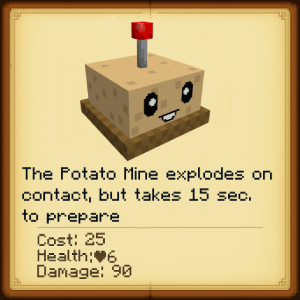
Cost: 25 Sun
Cooldown: 30 seconds
Function: After being planted, the Potato Mine arms itself and will explode when a zombie gets too close.
Snow Pea
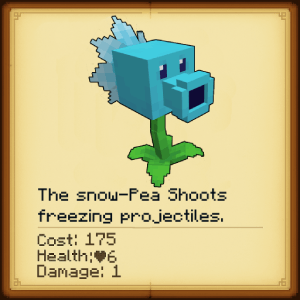
Cost: 175 Sun
Cooldown: 7.5 seconds
Function: Shoots freezing peas that not only damage zombies but also slow them down.
The Zombies
You'll face a variety of zombies trying to get to your house.
Zombie: The standard, slow-moving zombie. Weak on its own, but dangerous in large numbers.
Conehead Zombie: This zombie is tougher than the standard version thanks to the traffic cone on its head.
Buckethead Zombie: The toughest of the basic zombies, the bucket on its head provides a great deal of protection.
- Levels & Progression
- The map features 8 levels of increasing difficulty.
Level 1: Tutorial - Learn the basics and unlock the Sunflower.
Level 2: The Bigger Lawn - Unlock the Cherry Bomb.
Level 3: Conehead Kerfuffle - Unlock the Wall-nut.
Level 4: Buckethead Brigade - Unlock the Potato Mine.
Level 5: Potato Power - Unlock the Snow Pea.
Level 6: The Bucketheads are Back
Level 7: Zombie Tsunami
Level 8: The Final Stand
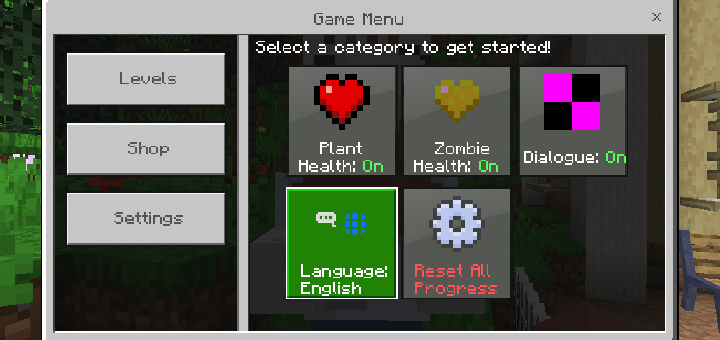
- Settings
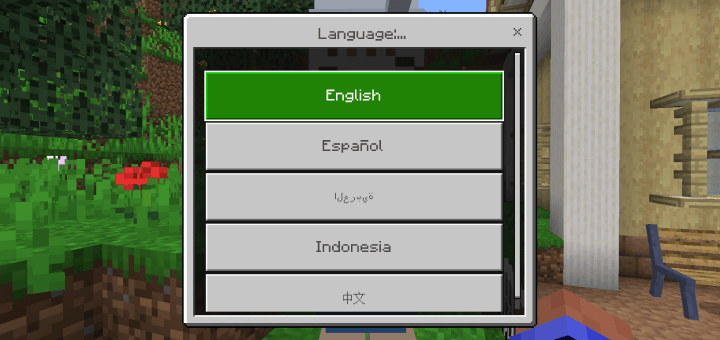
- From the main menu, you can access the settings to customize your experience. Here, you can toggle the visibility of plant and zombie health bars, turn Crazy Dave's dialogue on or off, and change the game's language.
CREDITS: ADDONS & Scripts: BONY162 YouTube: BONY162 Twitter: @B0NY434445 TikTok: BONY_162 Discord: BONY162 CurseForge: BONY162
3D Models (Plants) Andy Twitter: https://x.com/Andy7McCain
3D Models (Zombies/Crazy Dave) dzuz69 TikTok: dzus69 YouTube: dzus69
MAP DESIGN XBOX: KFC Hun7er
Installation von Plants vs Zombies
With Millida Launcher
Install Millida Launcher
The launcher is free: download it at millida.net/launcher and sign in with any nickname.
Click “Install” on this page
The launcher opens and installs the map for Minecraft 1.21.50–1.21.111 automatically.
Launch the game
A profile with it appears in the launcher: click “Play”.
Manually
Download the map archive
Pick the file Plants vs Zombies BedrockEdition v1.1 BONY162.mcworld (8.0 MB).
Unpack it into the saves folder
The world folder (with level.dat inside) must sit directly in .minecraft/saves.
Open the world
“Singleplayer”: the map will be in your world list.
On a server
Replace the world folder
Stop the server and put the map folder in place of world (or set its name in level-name).
Use the “To server” button
On Millida Hosting, the button at the top of the page uploads the file to your server and restarts it for you.
Versionen
Mit Abhängigkeiten
| Minecraft | Loader | Datei | Datum | Aktionen |
|---|---|---|---|---|
| 1.21.50 | — | Plants vs Zombies BedrockEdition v1.18 MB 6 |
Bewertungen
Bewerten Sie Plants vs Zombies als Erster