
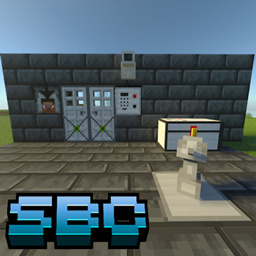
Minecraft 1.21.90-এর জন্য SecurityBeCraft অ্যাডঅন
আপনার বিশ্বের জন্য একটি নিরাপত্তা অ্যাডন, অন্যদের থেকে নিজেকে রক্ষা করার জন্য।
Experimental Gameplay
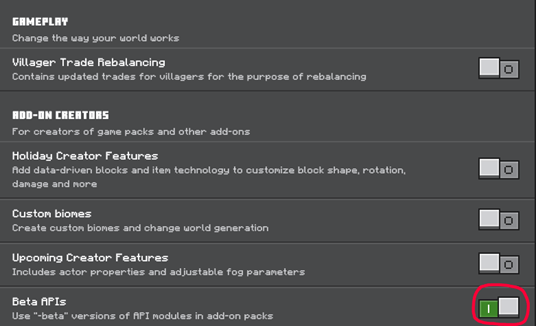
Beta API's gameplay it's required for this addon.
Introduction
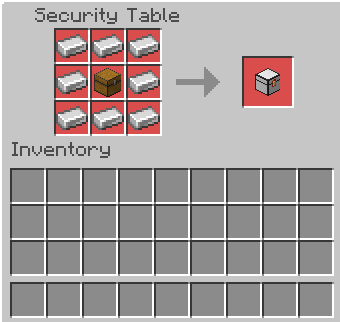
To start, we need to get the security table, this table can be created with just 2 materials.
We will need 3 iron ingots and 4 wooden sticks
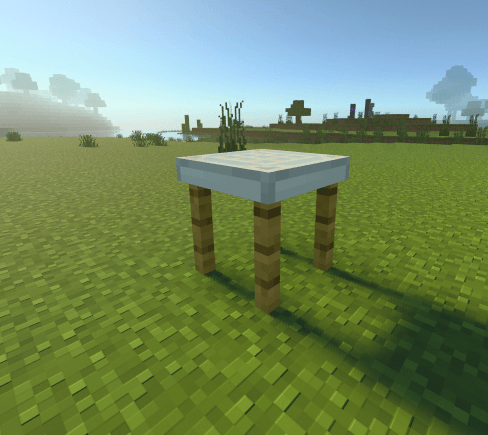
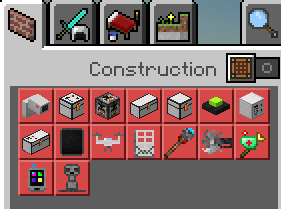
With this security table, we can create all the available objects, such as: Security cameras, reinforced and password-protected chests, turrets, spy drones...
(Only clicking in the item, you can see the recipe)
Spy Drone and Camera
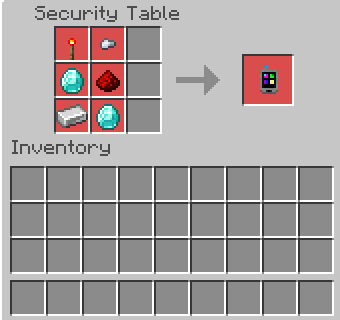
In order to use the cameras and drones, we need to get a tablet, so we can access the view of the cameras and drones. The cameras will always be in fixed locations, while the drones can be piloted and moved around the world.
In order to obtain the tablet, we need to craft, we will need these objects:

We already have the tablet, now this will give us access to all our cameras and drones, but now we need to craft these. Here are the recipes:
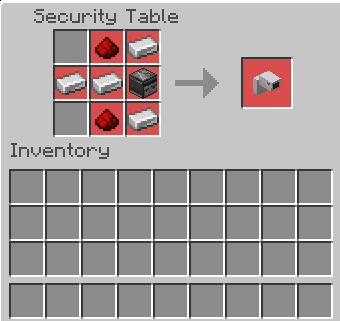

In order to use the camera, you need to follow these steps:
- Place the camera on a wall
- Interact with the camera to be able to add a reference name to it (It can be any name, but you can repeat a name that you have already used, ex: if you have a camera with the name: "my room", you can't rename a new camera with that name).
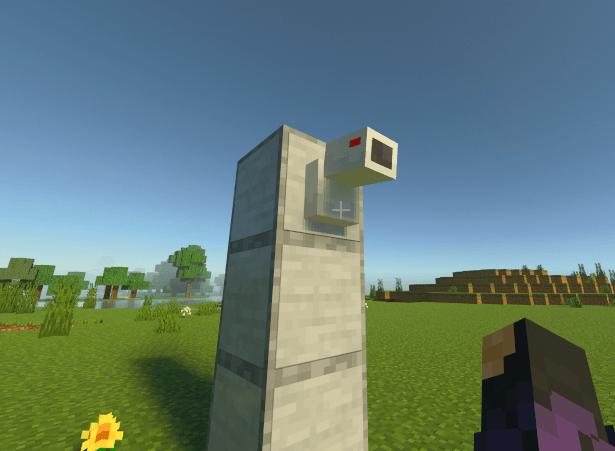

Done, the camera configuration has been successful, now we can use the camera from the tablet.
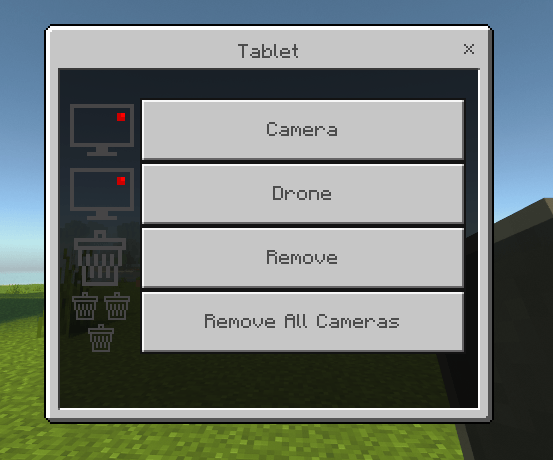
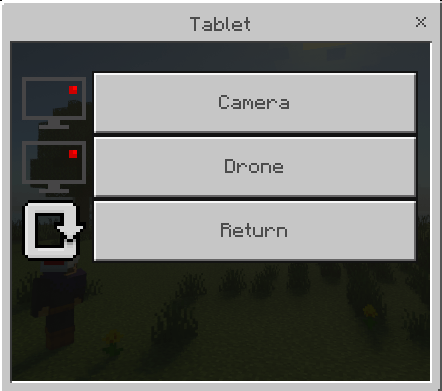
We will have 4 buttons available:
- Camera: This button lets you select one of your many cameras, when you select your camera, you will be able to see the camera perspective.
- Drone: This button lets you select one of your drones...
- Remove: This option lets you remove the camera that you want. (This option doesn't work for drones, if you want to remove a drone, you have to Shift and Right Click the drone).
- Remove All cameras: Well, you know what's that
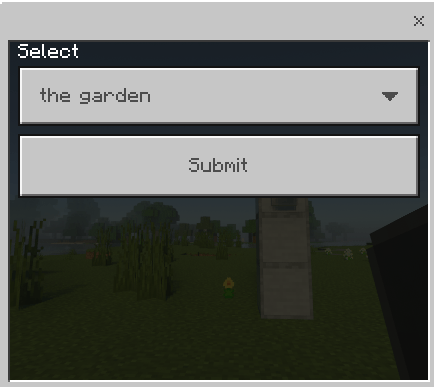
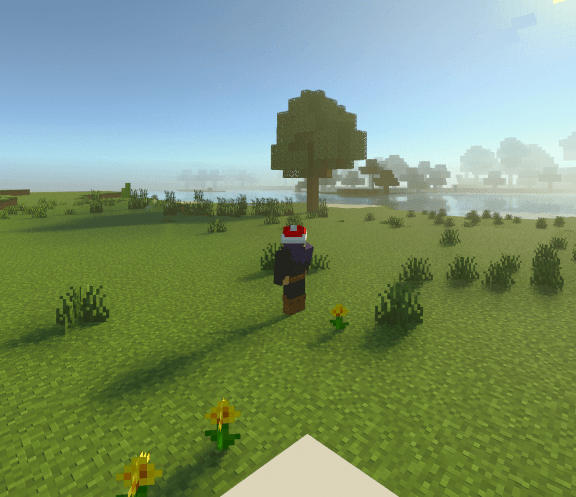
While in a camera, we can continue using the tablet, we can return to ourselves, change cameras or use a drone.
Drones work the same way, but these are placed on the ground, and when they are placed on the ground, you interact with the drone to be able to assign it a name.

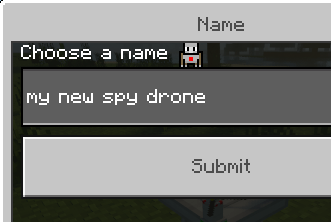
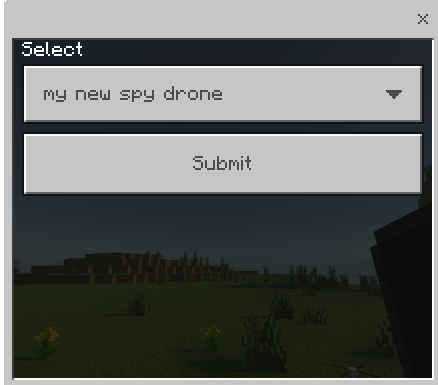
That's it, your drone is now set up and ready to fly. The drone has a signal limit, though, so if at any point you can no longer control it, you have to get closer to it so it can get a signal again.
Fly Insructions:
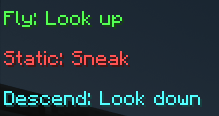
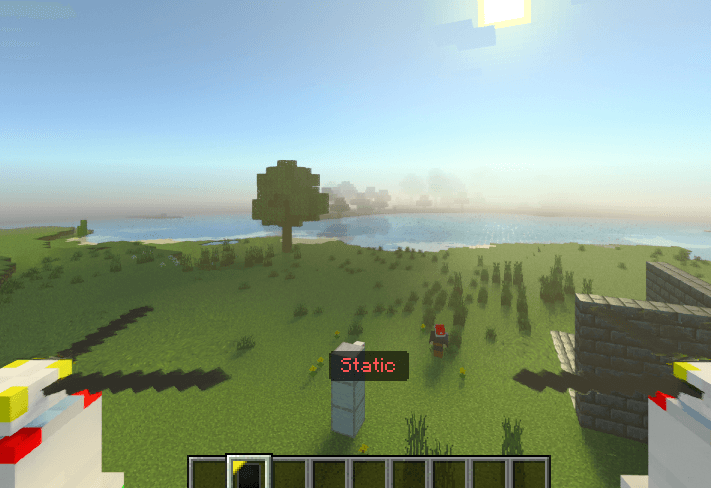
Okay, we've already learned how to use the drones and cameras in the add-on, let's move on to something even easier now.
Mines
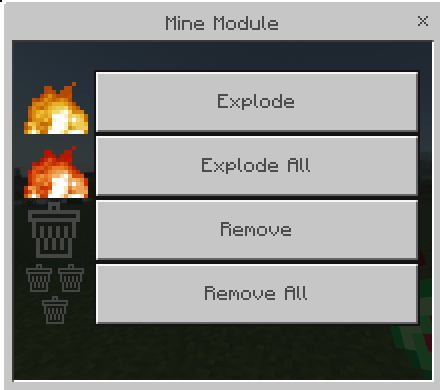
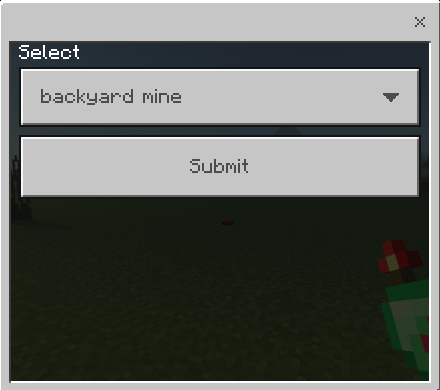
Mines work very similar to cameras, they are assigned a unique name, and with the mine module, we can control them and say whether they explode or not.
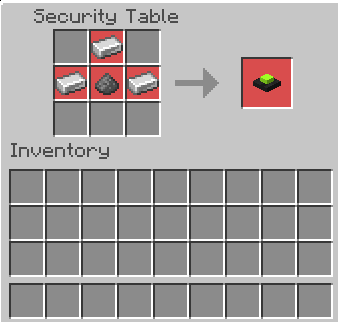
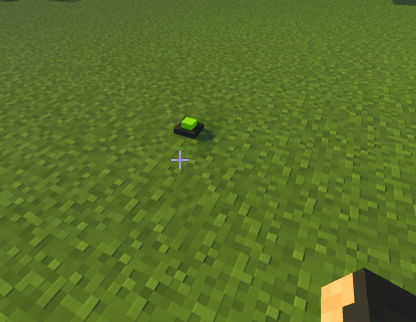
We have to put the mine on the floor, and then interact with it.
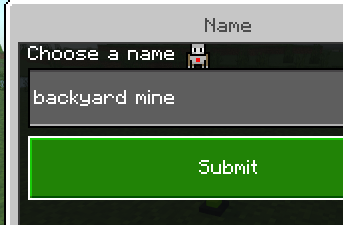
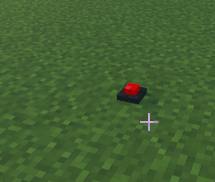
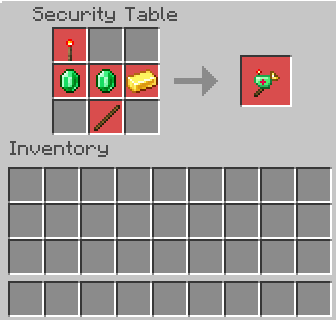
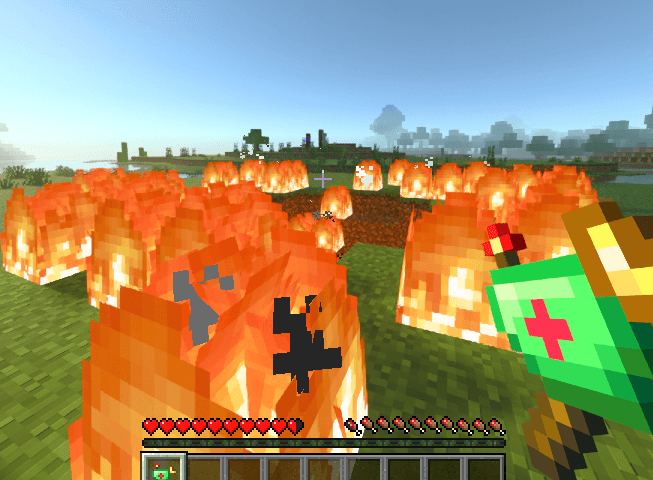
After setting up the mine, it will turn a red hue, indicating that it can now explode, this can happen if you step on it or by using the module. This is the recipe:
Reinforced Chest
We have 2 types of reinforced chest.
- Normal reinforced chest: Only the one who placed the chest can open it
- Reinforced chest with password: Only the one who has the password can access it
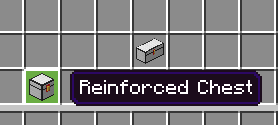
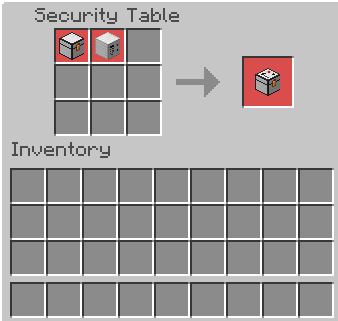
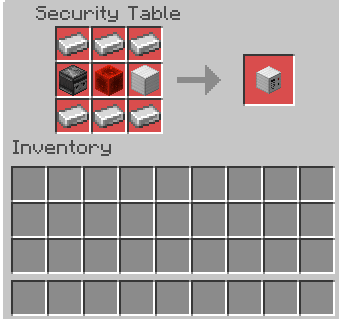
You can identify the normal chests by the name, the normal chests do not have the word "KeyPad" in their name, another way to identify them is by the top of the chest model, it is completely white.
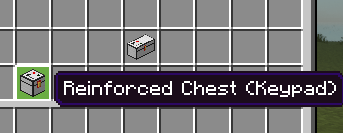
To identify the password protected safes, you can rely on the name, as the name includes the word "KeyPad", another way to identify them is by the top of the safe model, which has black dots.
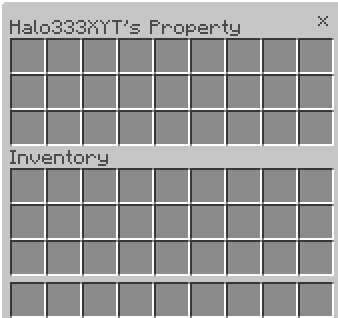
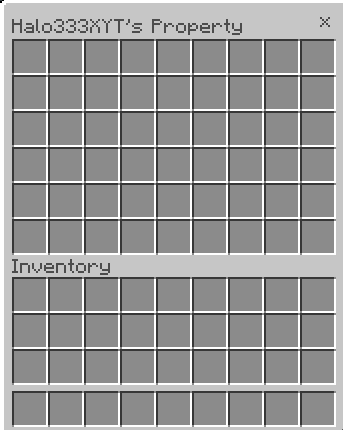
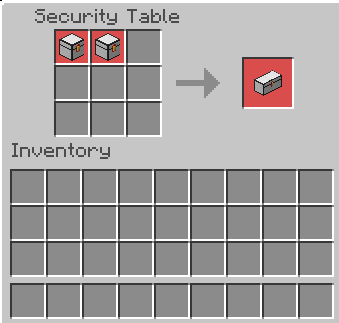
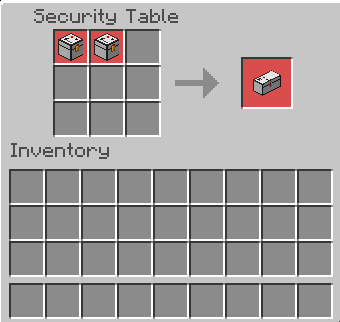
There are 2 sizes of chest for each type, the small size and the large size of chest.
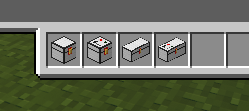
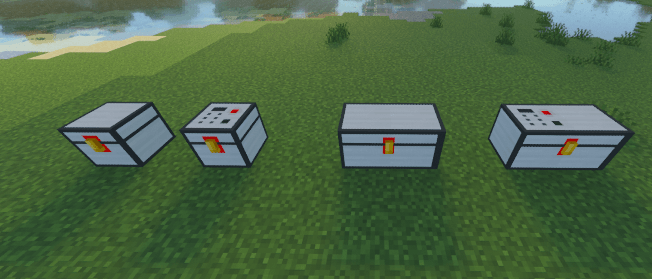
- Normal chest: Once you put these chests on the ground, you can open them. Nothing else is required; the owner of the chest is the one who put it there.
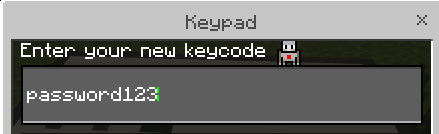
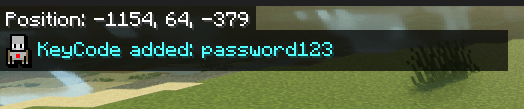
- Password Chest: When you place the chest, you will have to interact with it in order to set the password, once you set the password, you will have to memorize the password. Every time you want to use the chest, you will have to enter the password. Anyone can open it if they know the password.
Set the password
Password added
Unlocked chest
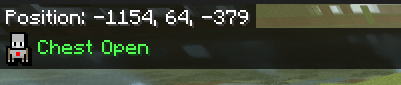
Containers Size
Small chest
Big Chest
Recipes
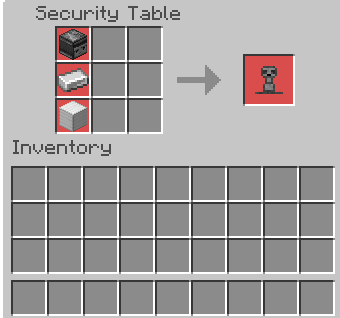
Turret
Turrets defend areas from enemies, whether monsters or players. They must be placed on the ground, and their owner will be the player who placed them.
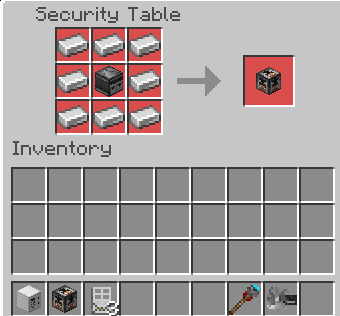
After placing the turret, you will be able to interact with it to adjust it. It looks like a block of iron
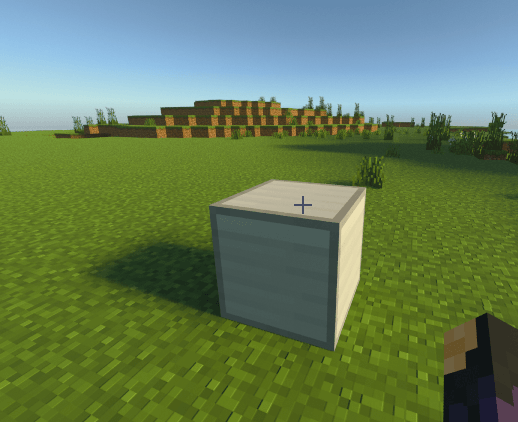
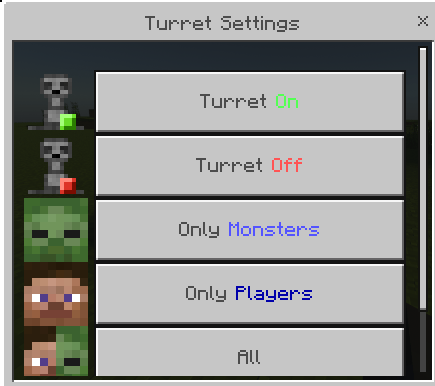
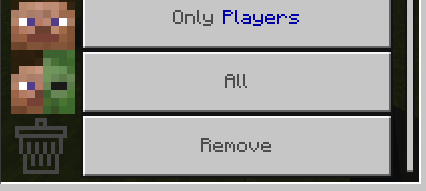
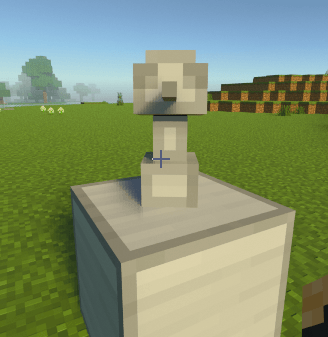
If you have more than 1 turret and you want to control them all at once, it is possible with the turret module, this will allow you to control all the turrets:
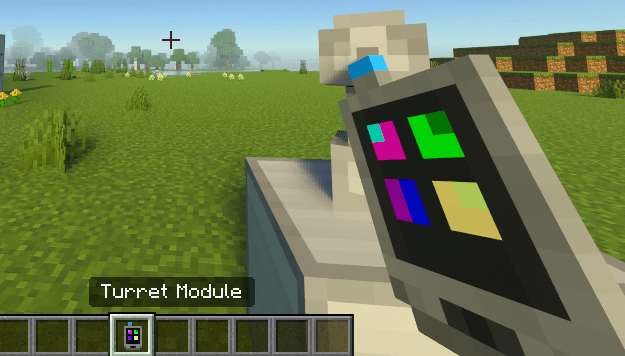
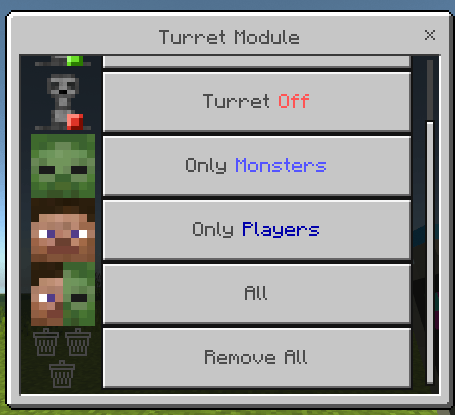
The only difference is being able to control all the turrets and being able to remove them all.
Reinforced Door
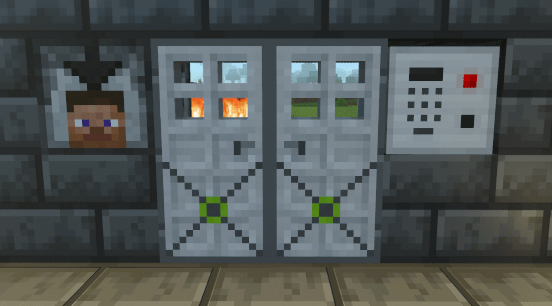
These reinforced doors are indestructible, as are all other objects. With these doors, other people will not be able to enter your house if you wish, since they have the option of operating through a scanner or a keypad.
- Scanner: When you place the scanner, the scanner will automatically recognize you as the owner, and cause the doors to open. This only happens to the player who placed the scanner. The scanner emits a signal of up to 2 blocks to open doors, so you have the possibility of having double doors
- Keypad: Anyone who has the security code will be able to access the property, this works the same as the password-protected chests. As long as you have the password secure, no one else will be able to enter.
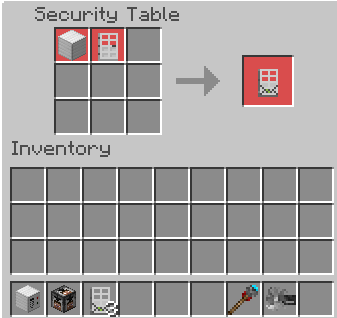
Scanner
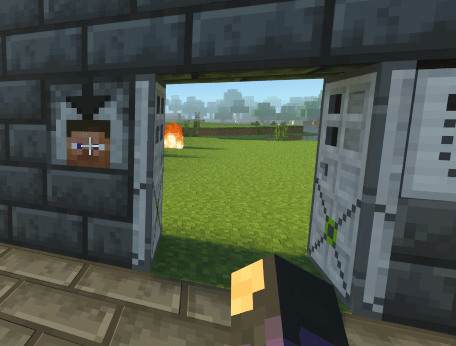
For the scanner to work, you have to look directly at it.
ভার্সন
| Minecraft | লোডার | ফাইল | তারিখ | অ্যাকশন |
|---|---|---|---|---|
| 1.21.90 | — | SecurityBeCraft310 KB |
FAQ
Which Minecraft versions does SecurityBeCraft work on?
There are files for 1.21.90, 1.21.80, 1.21.70. The newest is 1.21.90.
Where can I download SecurityBeCraft safely?
On this page: the file SecurityBeCraft.mcaddon (310 KB) is stored on Millida’s server, with no link shorteners. SHA-1 checksum: b36cb7e7f532936c63a52013dd1038fe5ccdf5f8.
রিভিউ
SecurityBeCraft-এ প্রথম রেটিং দিন
