

حول حزمة موارد ezRTX
Vanilla-Style Vibrant Visuals and Ray Traced Resource Pack.
There is no pack on the internet that is as detailed, realistically tuned, balanced, and still retains the vanilla feel.
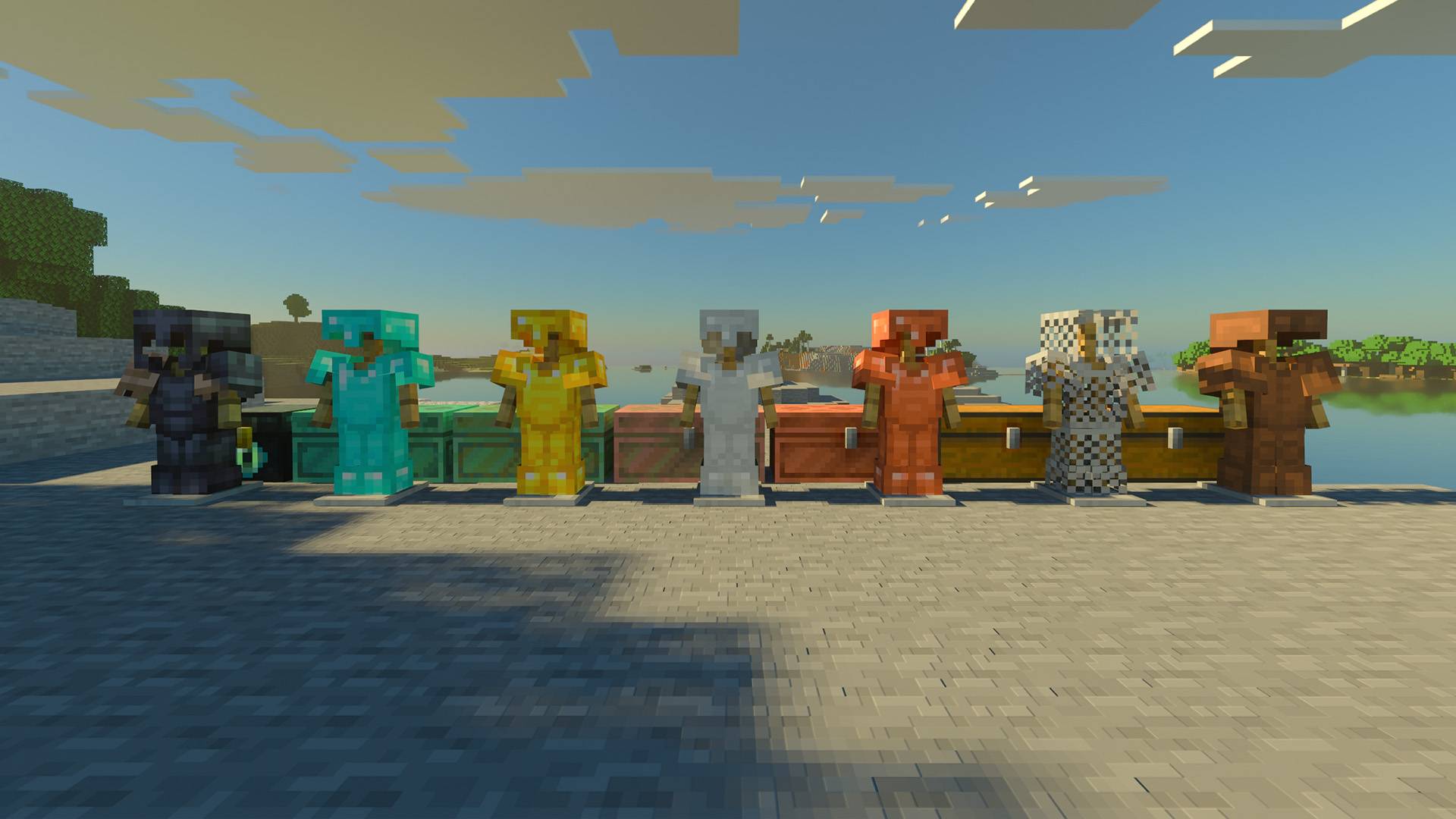
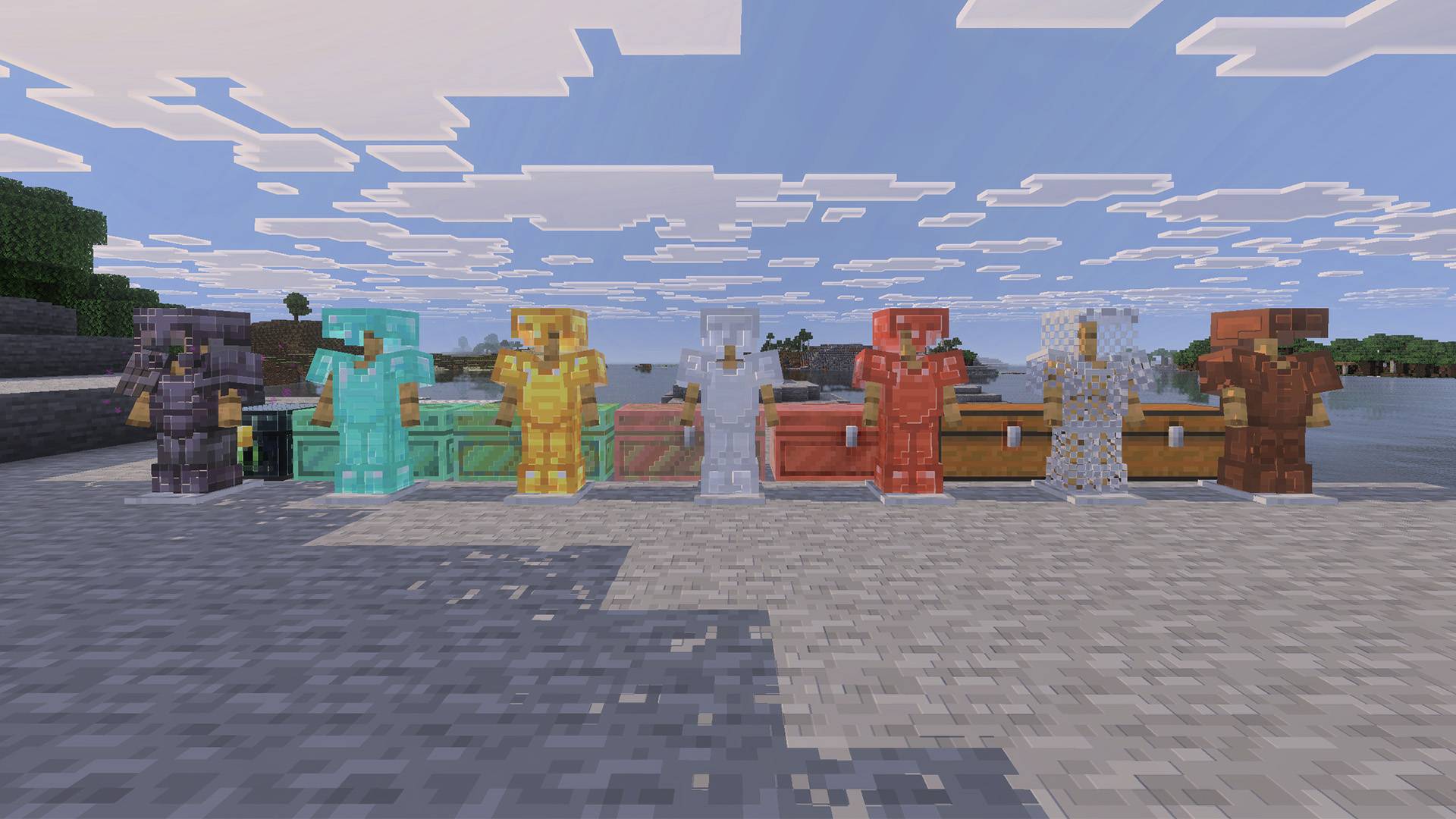
All textures have not been subjected to changes in appearance, color, saturation with the exception of weather and particles for a better sense of realism compatible with vanilla. Maximized balanced glow, metallic and smoothness effects to achieve the best comfort experience without graphics artifacts. No unnecessary luminous elements and blocks, only what should be luminous is luminous. The luminous blocks have a proper vanilla hierarchy and are set up so that blocks with the same light level glow the same way. Every aspect was taken into account to logically identify the objects. Also included is an improved settings panel with an integrated V-Sync switch and fixes for all known bugs.
Requirements for ezRTX with Vibrant Visuals mode:
- Hardware: PC (Personal Computer) or Laptop, Android or iOS;
- Adjust Gamma: 50%.
Installation ezRTX for Vibrant Visuals mode:
- Download ezRTX.
- Install ezRTX.
- Activate ezRTX.
*Settings/Global Resources/My Packs/ezRTX [Activate]
- Enter a world.
Requirements for ezRTX with Ray Traced mode:
- Hardware: PC or Laptop;
VR (Virtual Reality) headsets and MR (Mixed Reality) headsets are not supported; OS (Operation Systems): Windows 10 (64-bit Version) or higher; GPU (Graphics): DirectX hardware ray tracing-capable GPU, such as NVIDIA® GeForce® RTX 20 Series or higher, AMD Radeon™ RX 6000 Series or higher; CPU (Processor): Intel Core i5 or equivalent; RAM (Memory): 8 GB or higher; A version of Minecraft (Windows Bedrock Edition) at 1.16.200 or higher.
- ezRTXnorm for Ray Traced Enhancement.
Installation ezRTX for Ray Traced mode:
- Download ezRTX.
- Install ezRTX.
- Activate ezRTX.
*Settings/Global Resources/My Packs/ezRTX [Activate]
- Choose compatibility with Ray Traced mode.
*Settings/Global Resources/Active/ezRTX [⚙️] **Move the slider to the left to switch to Ray Traced
- Enable Graphics Mode Switching.
*Settings/Video/Allow In-Game Graphics Mode Switching [Enable]
- Enter the world.
- Change the Graphics Mode directly in the world.
*Settings/Video/Graphics Mode/Ray Traced
- Re-enter the game to fix graphical artifacts.
كيفية تثبيت ezRTX
With Millida Launcher
Install Millida Launcher
The launcher is free: download it at millida.net/launcher and sign in with any nickname.
Click “Install” on this page
The launcher opens and installs the resource pack for Minecraft 1.21.130 automatically.
Launch the game
A profile with it appears in the launcher: click “Play”.
Manually
Download the archive
Pick the file ezRTX.mcpack (9.3 MB) for your game version. No need to unpack it.
Put it in the resourcepacks folder
The easiest way: “Options”, then “Resource Packs”, then “Open Pack Folder”, and drag the archive there.
Enable the pack
In the same window, move the pack to the right-hand “Selected” column and click “Done”.
الإصدارات
مع المتطلبات
| Minecraft | المشغّل | الملف | التاريخ | الإجراءات |
|---|---|---|---|---|
| 1.21.130 | — | ezRTX 1.21.1319.3 ميغابايت |
الأسئلة الشائعة
Which Minecraft versions does ezRTX work on?
Only Minecraft 1.21.130: there are no files for other versions.
Where can I download ezRTX safely?
On this page: the file ezRTX.mcpack (9.3 MB) is stored on Millida’s server, with no link shorteners. SHA-1 checksum: 11c75e3388fcc384d6786a772f53fecf8271f3a2.
التقييمات
كن أول من يقيّم ezRTX


